

Customer Request System – Manage customer inquiries and orders
With bluetronix's Customer Request System, customers can request individual website changes, receive quotes, and track their orders. In this tutorial, you'll learn the complete process from both the customer and developer's perspective – from the request to payment to completion.
Objective of the Tutorial
In this tutorial, you will get to know the Customer Request System of the bluetronix CMS. It allows customers to request individual changes to their website, receive quotes, pay for orders, and track the current processing status.
We will show you the complete process from both the customer and developer perspectives: from the initial request through to the quote creation and payment, to implementation and completion. You'll also learn how template orders and additional marketing services are handled.
1. Create a new customer request
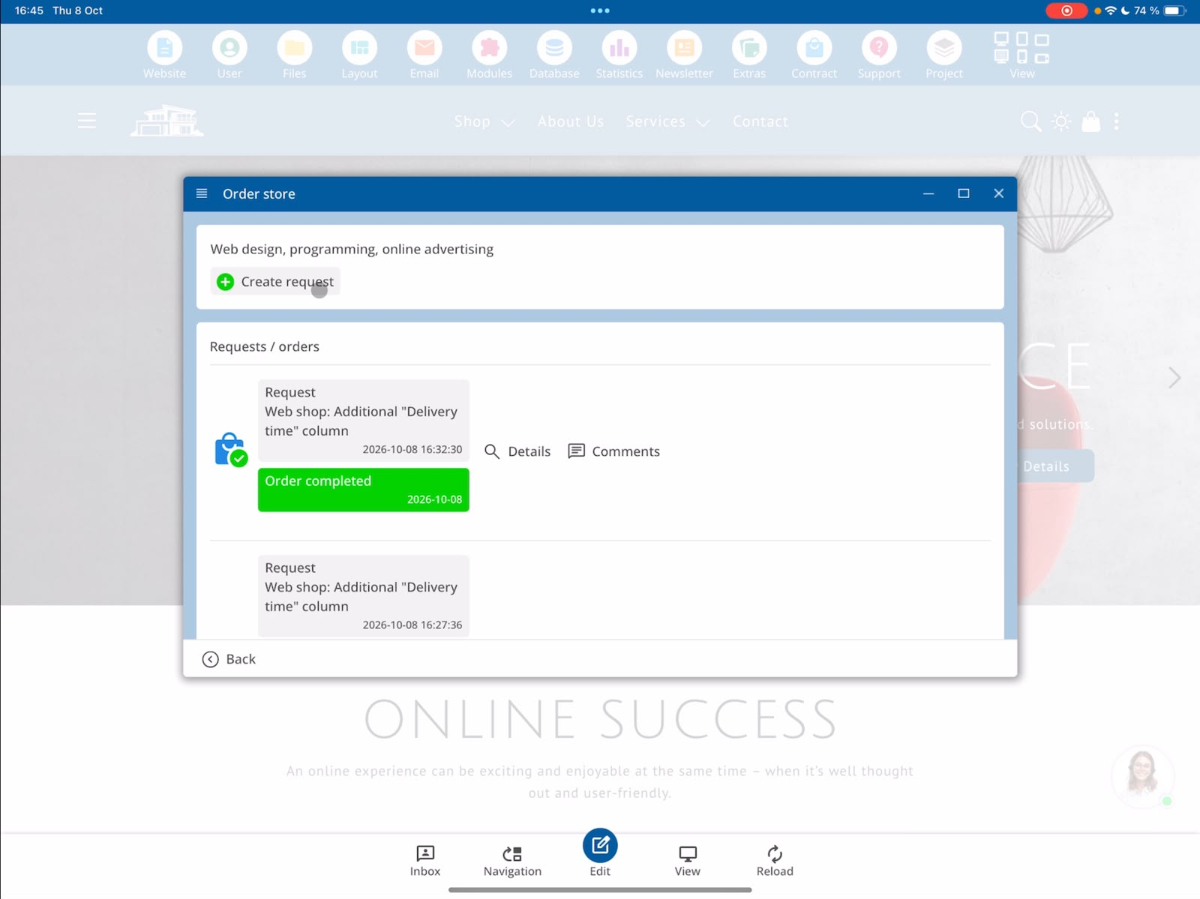
We start on a customer's project page. If the customer wants to make changes or expansions to their website that they cannot implement themselves with the available features of the bluetronix CMS, they can create an individual request.
To do this, open the menu Contract → Order Store → Create Request.
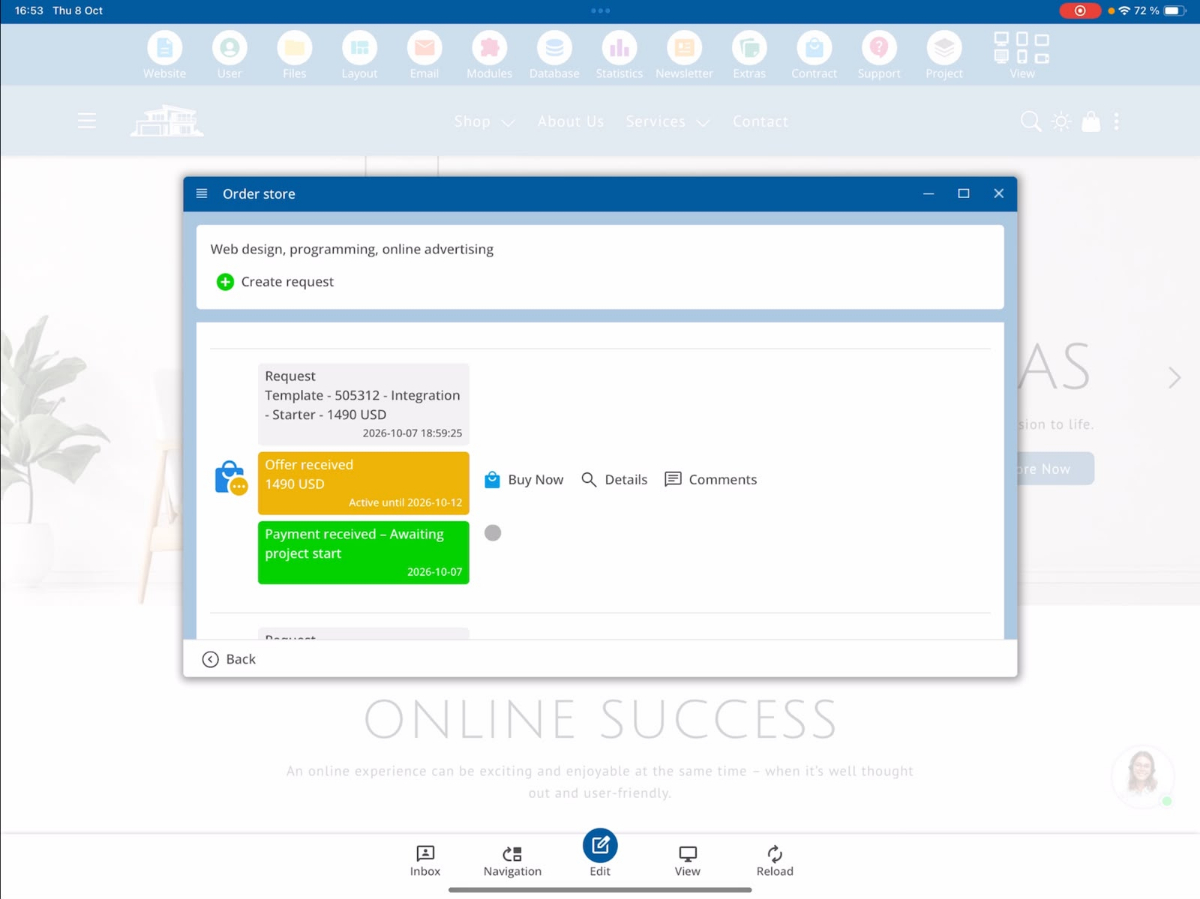
Now the request form opens. Here, the customer can describe their desired changes and provide additional files if needed.
The request includes the following details:
- Titel: Eine kurze Bezeichnung der gewünschten Änderung.
- Beschreibung: Eine ausführliche Erklärung der gewünschten Umsetzung.
- Bilder: Screenshots oder andere Bilder, die die Anfrage veranschaulichen.
- Dokumente: Zusätzliche Dateien, beispielsweise PDF-Dokumente.
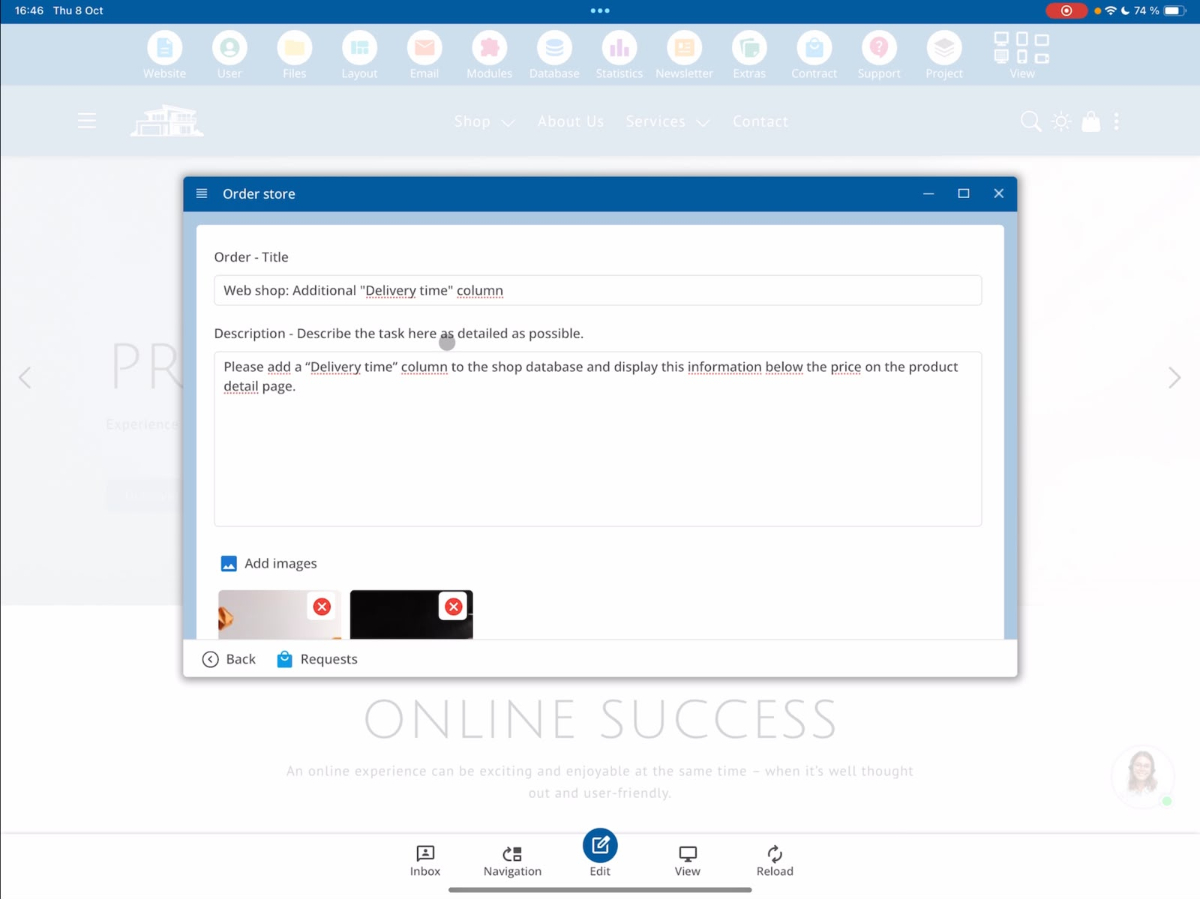
Once all the details are complete, the customer can submit the request via Request Now.
A confirmation will then be displayed that the request has been successfully submitted.
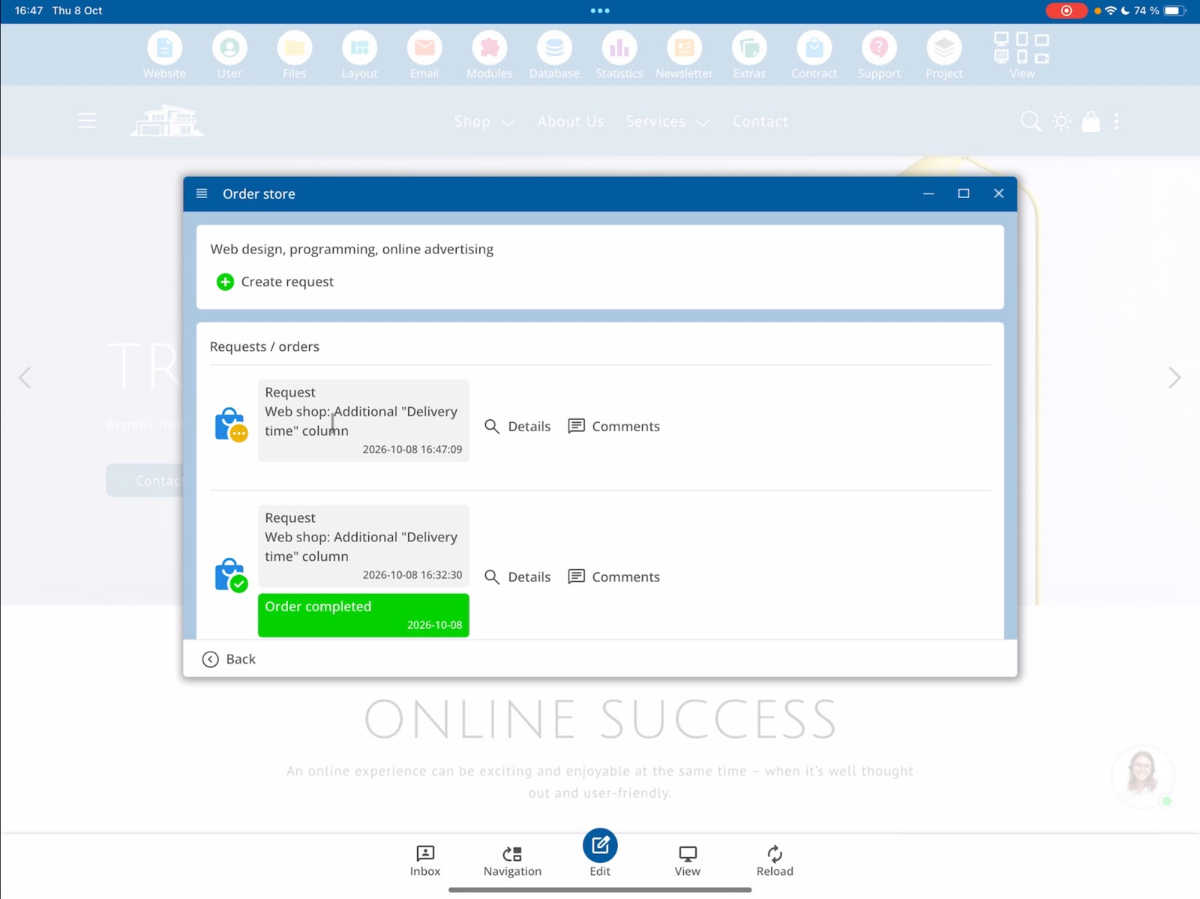
2. Manage customer requests from a developer's perspective
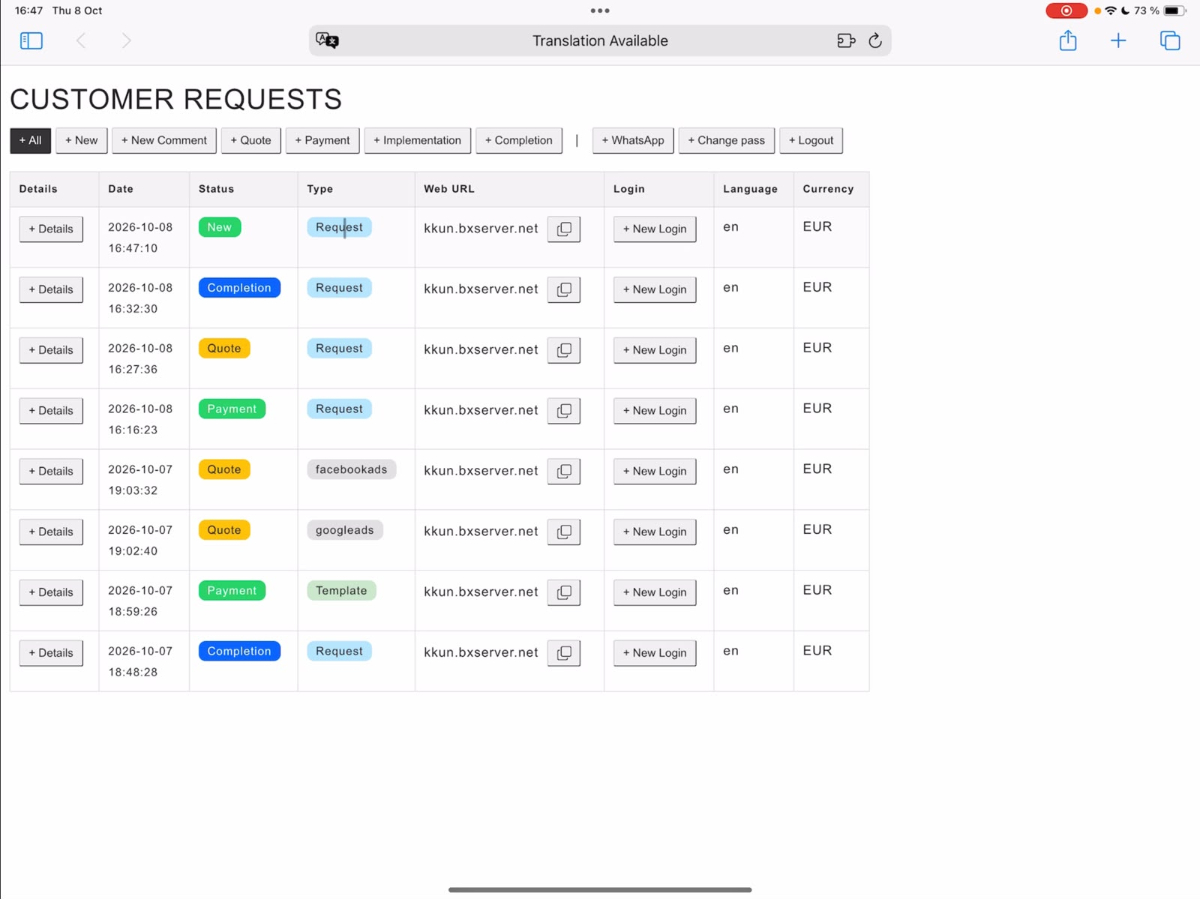
Now, let's switch to the developer view. Here, all incoming customer requests are displayed and managed centrally.
After the overview is reloaded, the new customer request appears. You can open the request via Details to check which changes the customer would like to commission.
3. Check request, priority, and translations
In the detail view, you will find all information regarding the customer request, including the priority, title, description, and any uploaded files.
Three priority levels are available for processing:
- Normal
- Fast
- Superfast
In our example, the request has a priority of Normal.
Title and description are displayed in multiple languages. First, the original text from the customer appears. Directly below, the automatically generated English translation is shown.
If a request has already been written in English, both texts can look identical.
Below, you can view the images uploaded by the customer and open attached PDF documents.
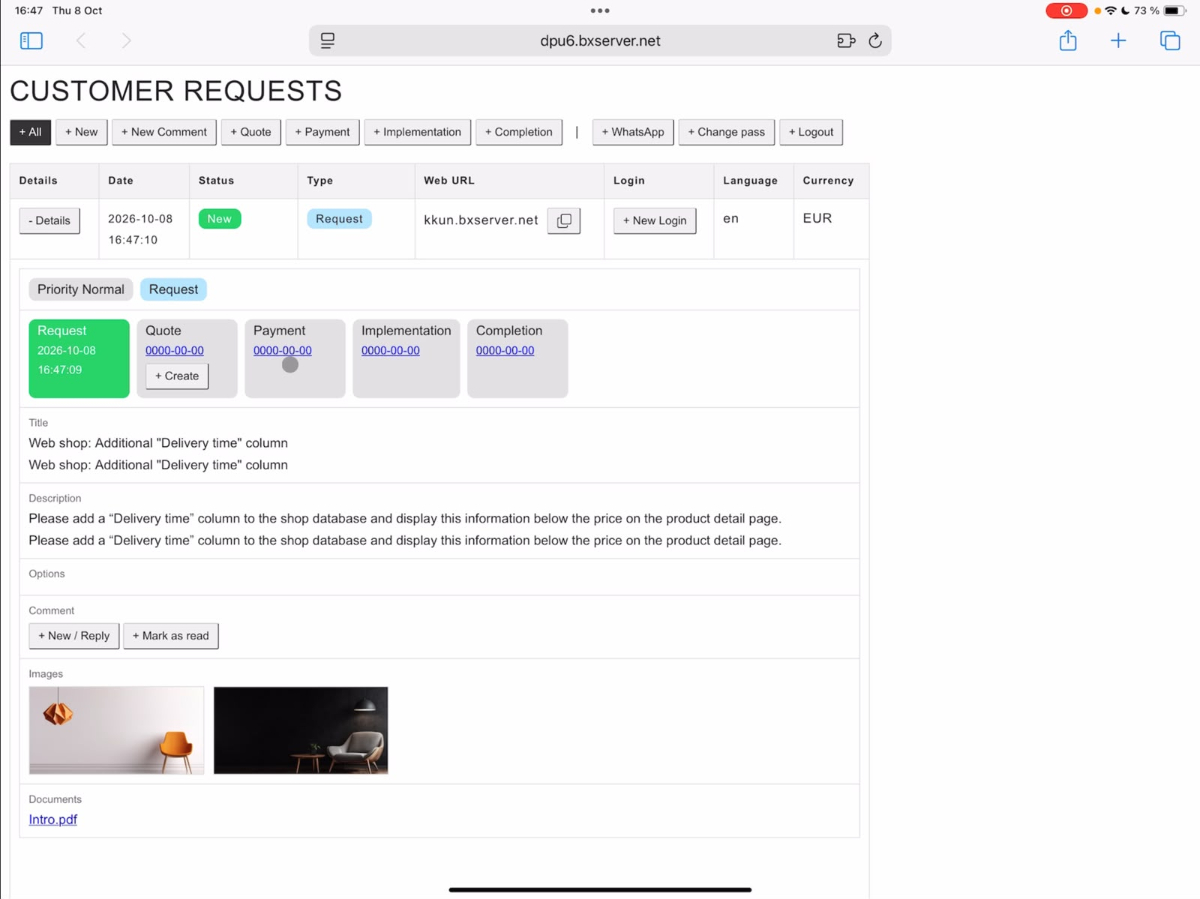
If information is missing or further questions are necessary, you can communicate directly with the customer via the comment function. This feature is available throughout the entire order process.
4. Create a quote for the customer
Once all requirements are clarified, you can create a quote under Quote.
First, enter a brief description of the offered service. This way, the customer knows what work is to be done.
Then, you specify the estimated number of developer hours needed.
Please note: The system automatically rounds the entered working hours up to the next half or full hour.
For example, if you enter 6.15 hours, the value will automatically be adjusted to 6.5 hours.
Additionally, you determine how long the quote remains valid. For instance, you can give the customer ten days to accept the offer.
After that, you have two options available:
- Speichern: Das Angebot wird zunächst gespeichert, beispielsweise damit ein Supervisor es vor dem Versand noch einmal prüfen kann.
- Senden: Das fertige Angebot wird direkt an den Kunden übermittelt.
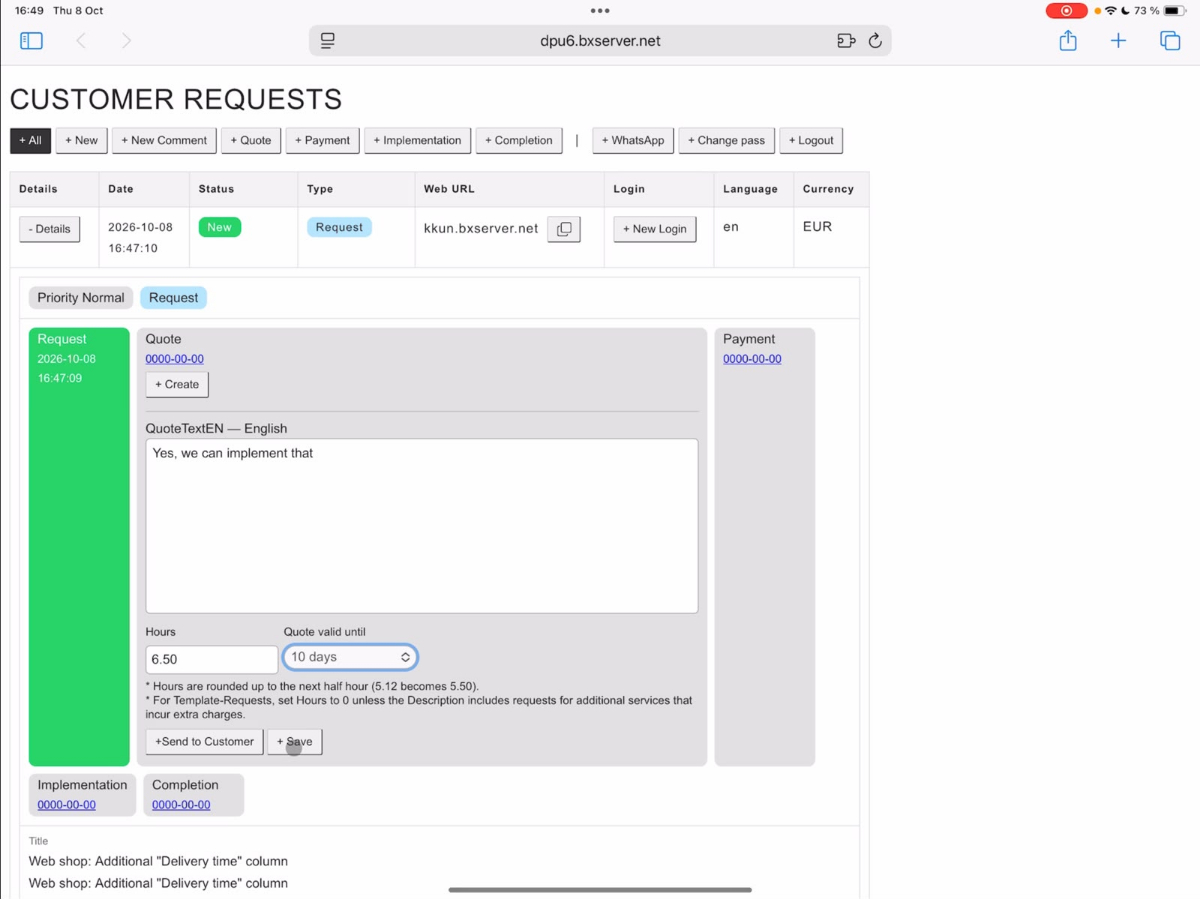
When sending, the quote is automatically translated into the customer’s language. This process may take a moment.
After successful sending, the request receives the status Quote. This indicates that a quote is available to the customer.
5. Accept and pay the quote from the customer's perspective
Let’s switch back to the customer view.
The customer sees that they have received a new quote. In our example, the quote price is 260 Euro.
Through Buy Now, the customer can accept and pay for the quote.
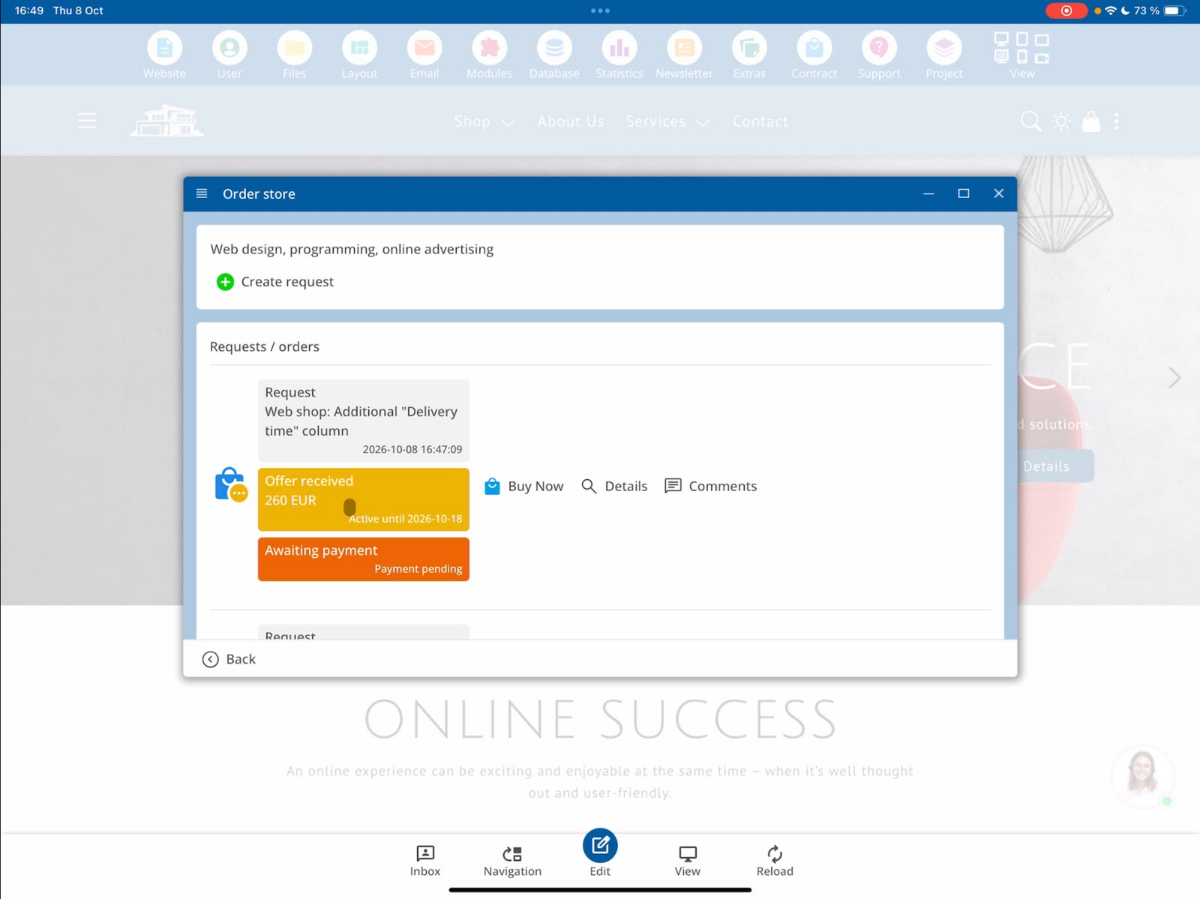
After successful payment, the customer is shown a corresponding payment confirmation.
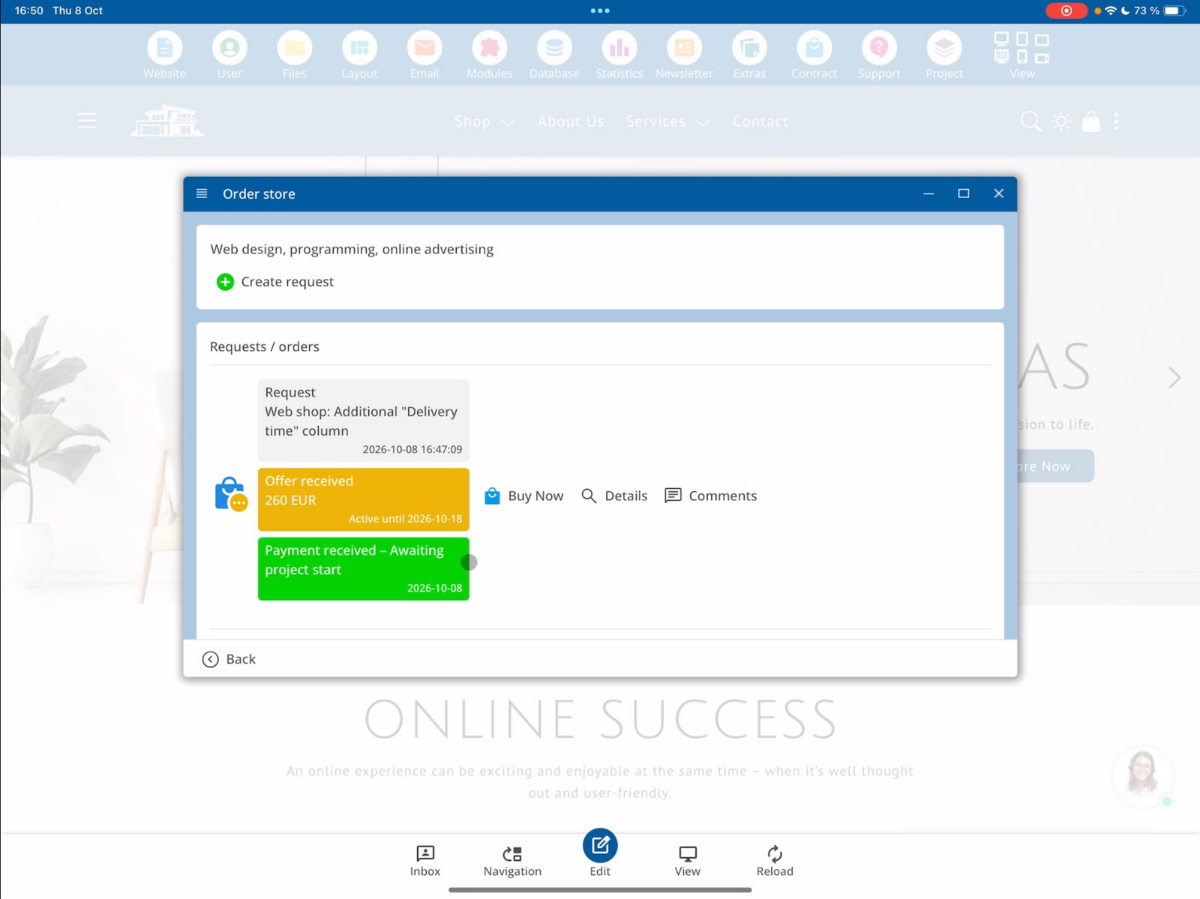
6. Check payment receipt and order status
In the developer view, the status automatically changes from Quote to Payment after successful payment.
This indicates that the payment has been received and the implementation of the order can begin.
7. Implementation: Set the order to in progress
Open the paid request via Details and select the section Implementation.
Here you can set a planned completion date for the commissioned work.
In our example, we choose October 15, 2026 as the completion date.
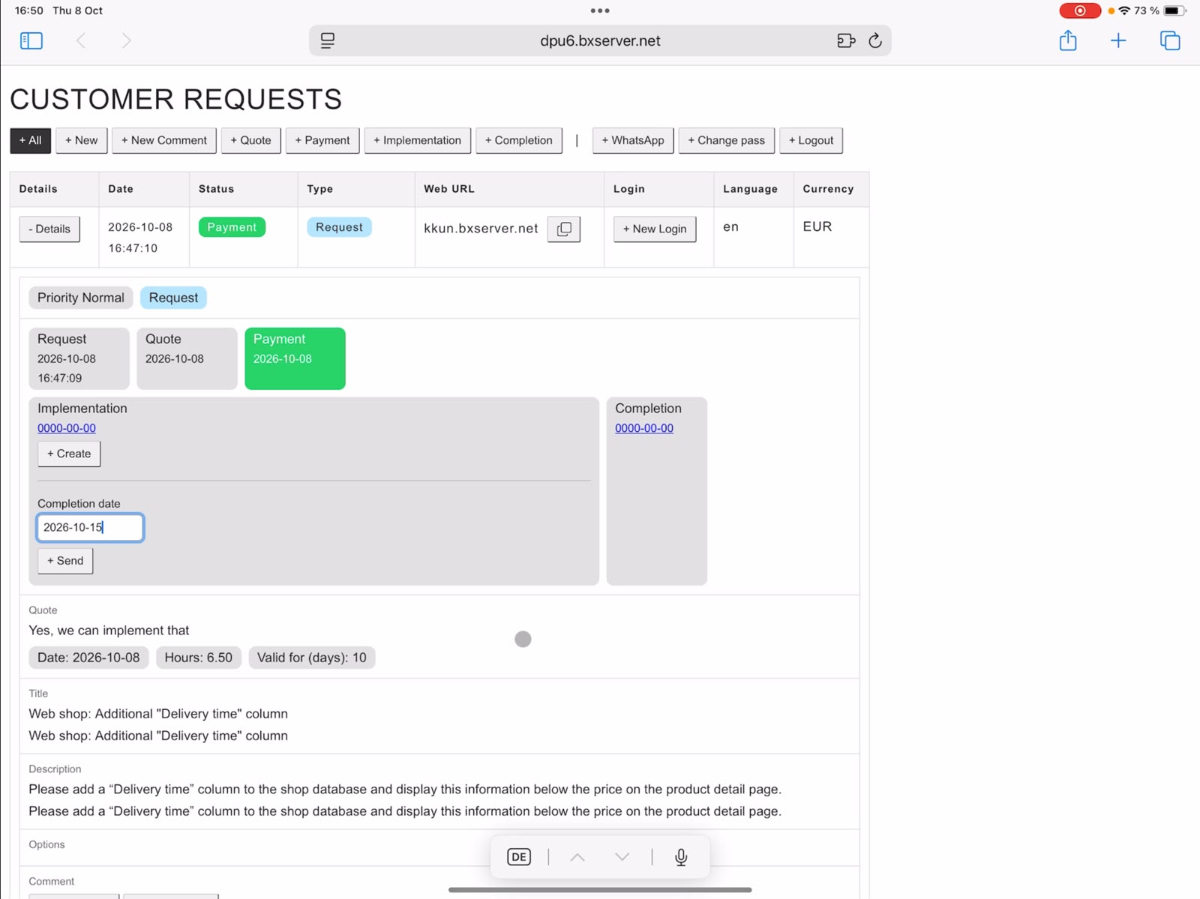
Subsequently, the order receives the status Implementation.
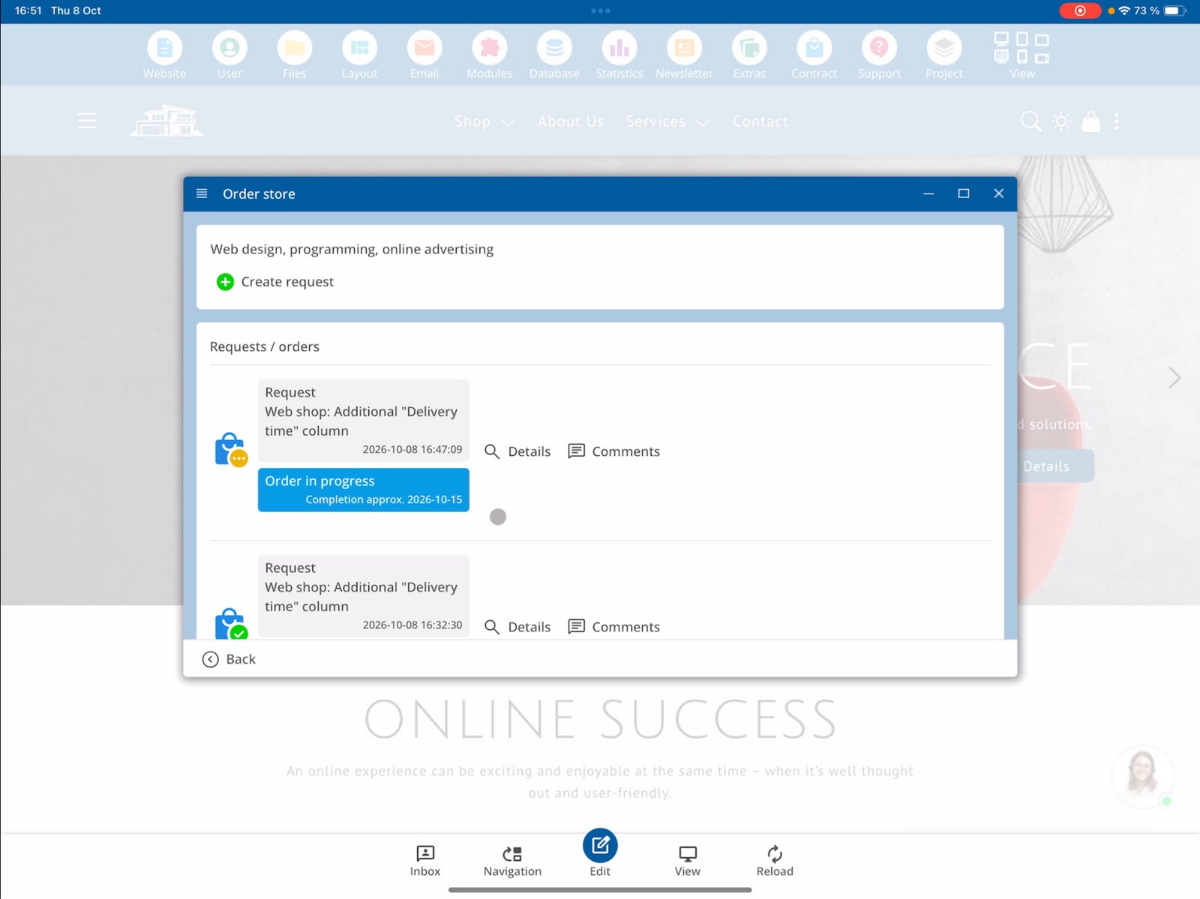
The customer can now also see that their order is being processed. Additionally, the planned completion date is displayed to them.
8. Communicate with the customer during development
The Customer Request System allows for direct communication between customers and developers throughout the entire order process.
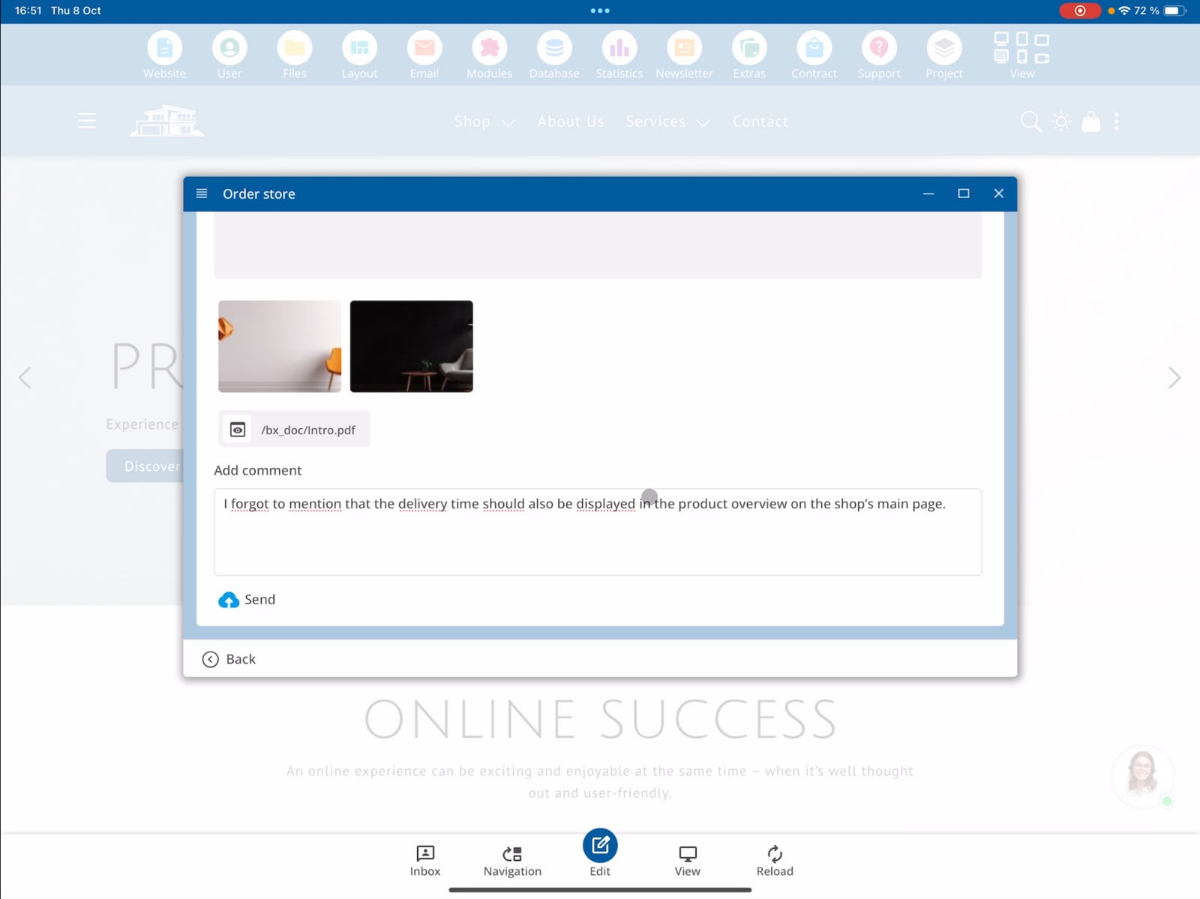
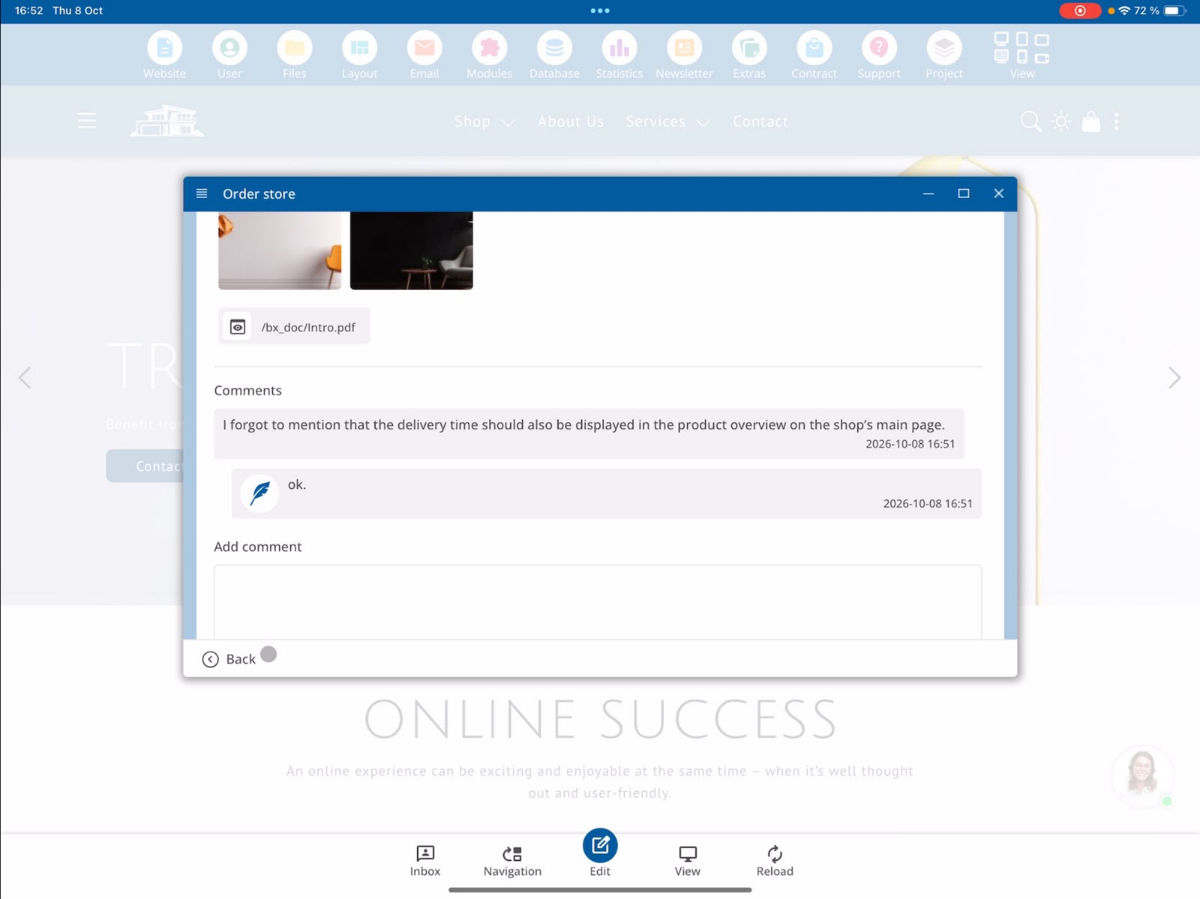
If the customer thinks of an additional change after payment or wants to provide further information, they can leave a message via the comment function.
To do this, the customer writes their comment and then clicks on Send.
Edit new comments from the developer's perspective.
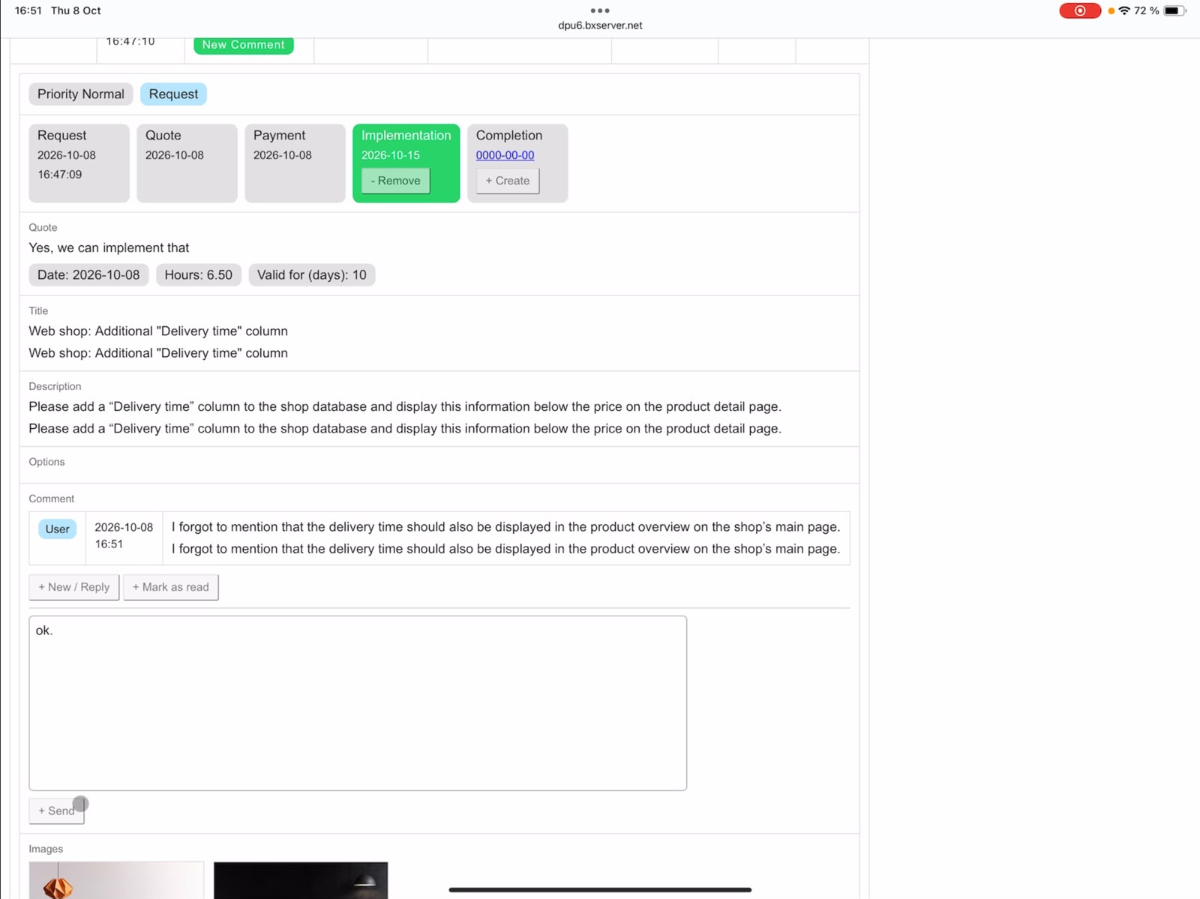
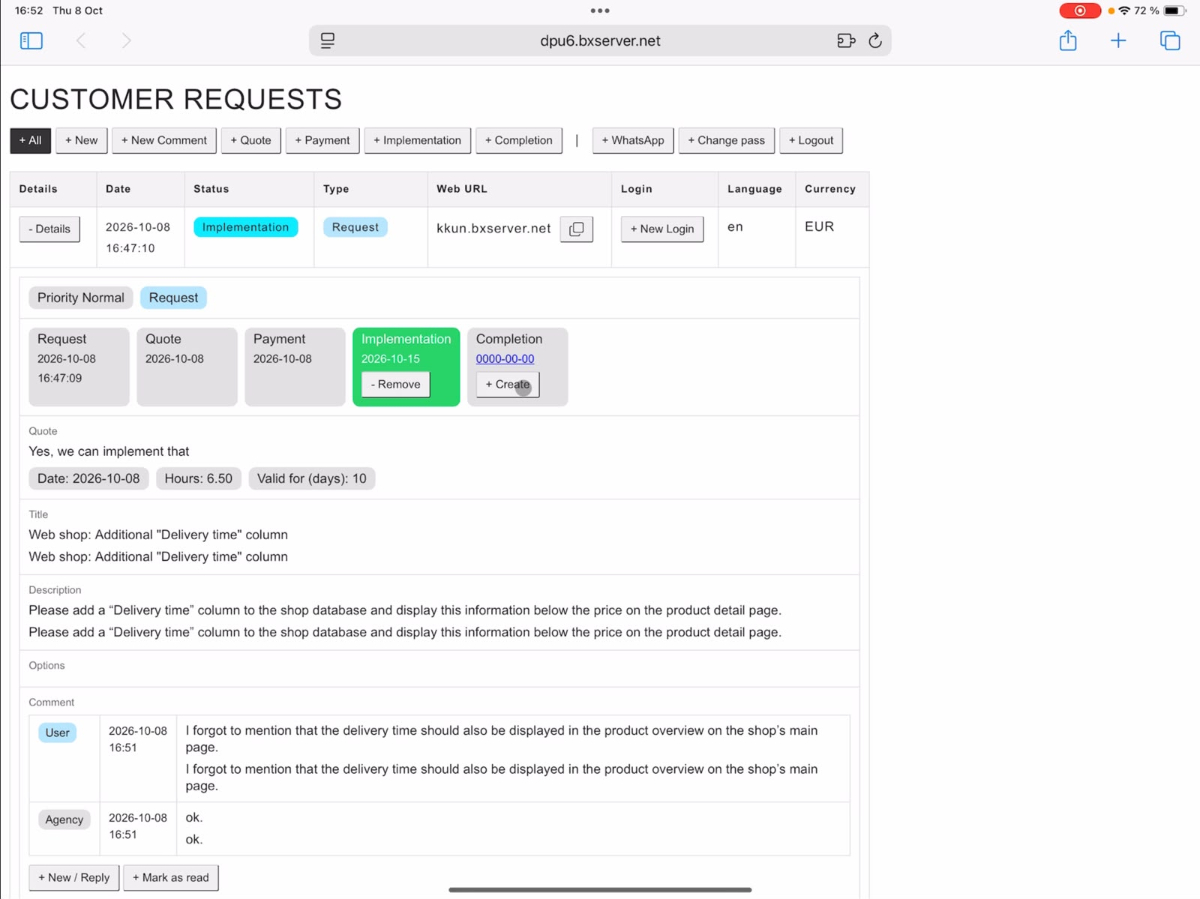
As soon as a new comment arrives, the notification New Comment appears in the developer overview.
Open the relevant request to read the comment. You can reply directly by entering a message and clicking Send.
In our example, we respond with a simple OK.
Mark comments as read.
After you have edited the comment, you can mark it as read.
The notification New Comment will then disappear from the overview.
The customer can also view the developer's response at any time under Comment.
9. Completion: Finalize the order
Once all commissioned changes have been fully implemented, the developer can complete the order.
To do this, open the corresponding request via Details and select Completion.
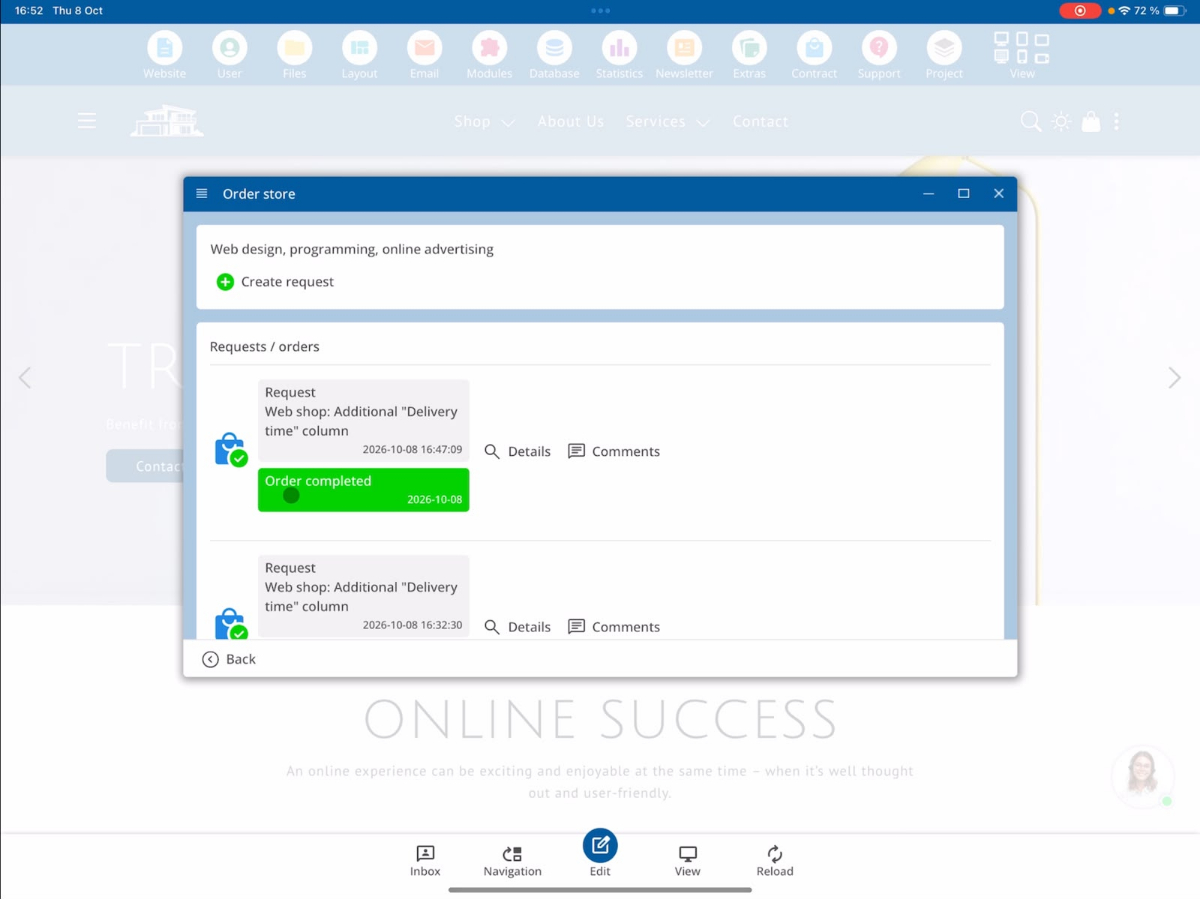
This marks the order as completed.
The customer will also see afterwards that the commissioned work has been successfully completed.
10. Order website templates through the Customer Request System
In addition to individual change requests, customers can also commission the integration of a finished website template.
Such template orders are handled directly with the status Payment.
In the developer view, the order appears accordingly as a template order.
Find and integrate template files.
In the developer area, open the file manager via Files and navigate to the BX Import folder.
Here you will find the website template provided by the customer that is to be integrated into the project.
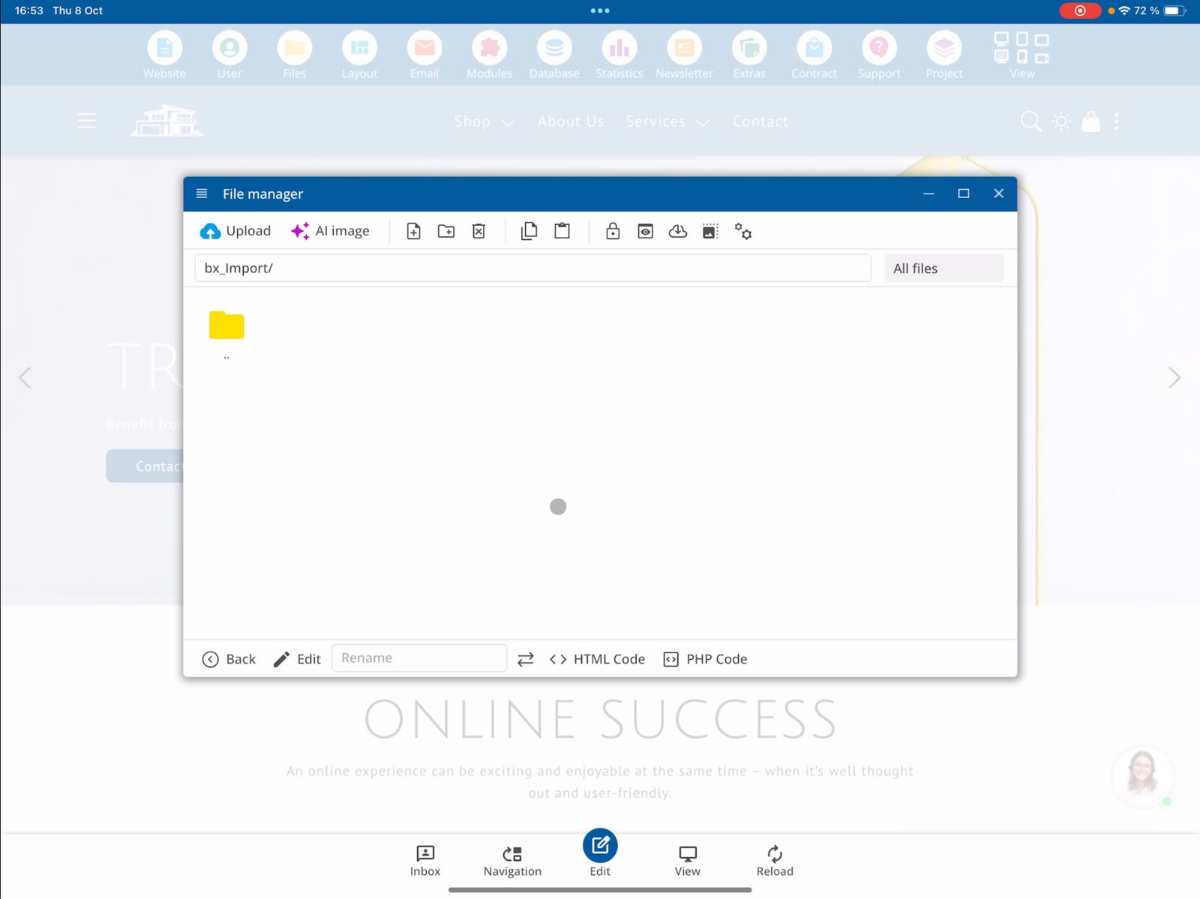
During integration, the content may need to be adjusted. Depending on which images and texts the customer has already provided, these will be manually inserted at the appropriate places in the template.
This includes, for example, replacing sample images, adjusting texts, and making further changes according to the customer's requirements.
11. Order additional marketing services
Through the Customer Request System, customers can also commission additional marketing services.
You can find this under Extras → SEO.
Here, among other things, advertisements through Google Ads and Facebook Ads are available for selection.
Order Google Ads
When ordering Google Ads, the customer can specify the period for which their ads should be displayed.
Additionally, they can determine the monthly advertising budget available for the campaign.
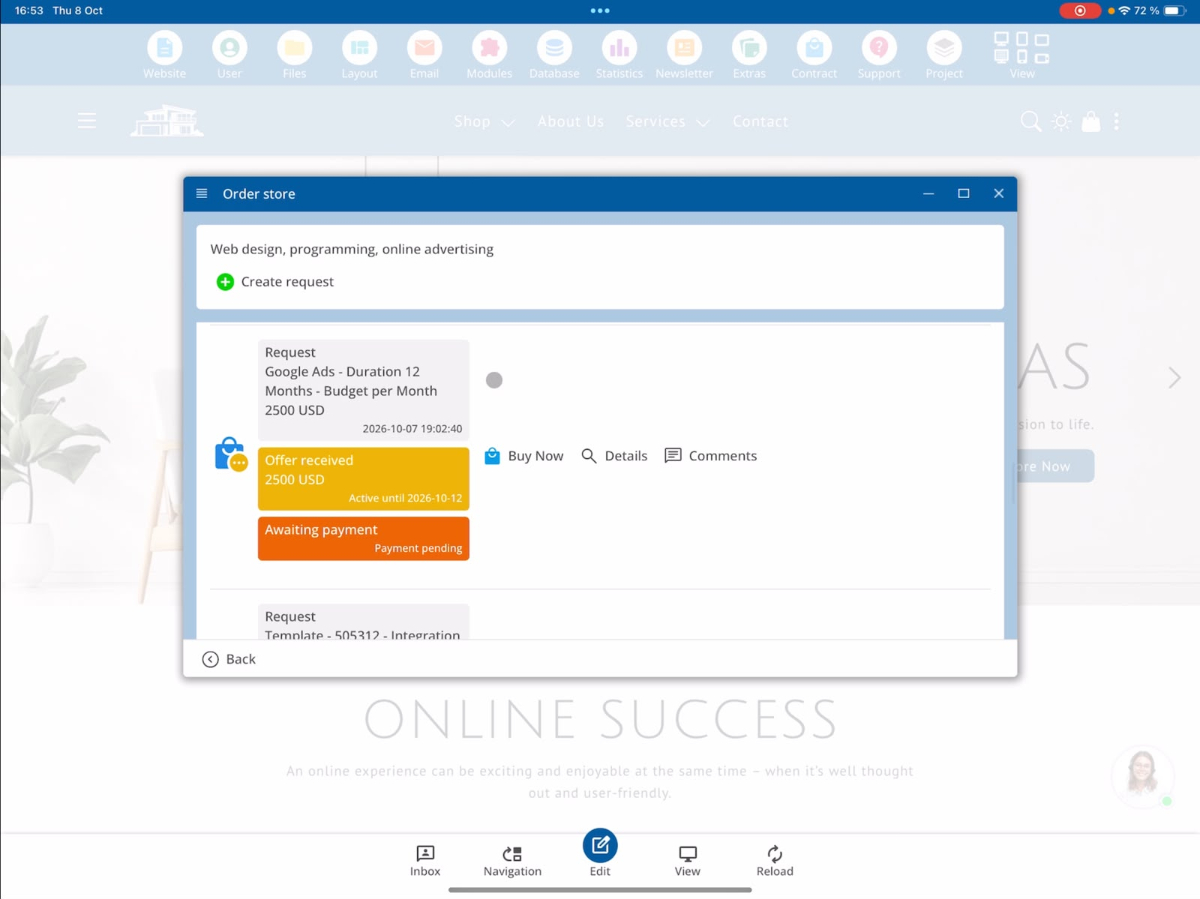
Order Facebook Ads
In a similar way, advertisements can also be commissioned through Facebook Ads.
The customer can specify the desired campaign settings and the available advertising budget.
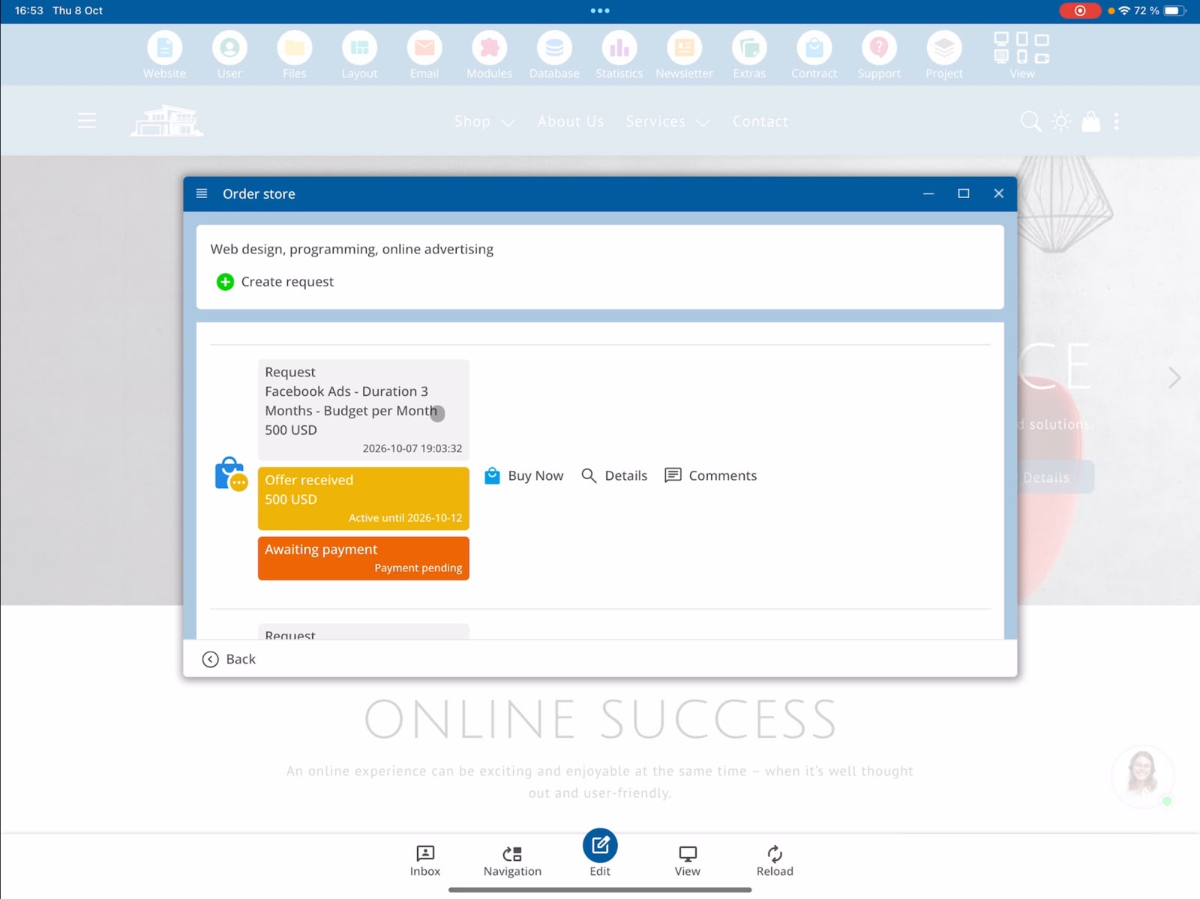
12. Overview of order statuses
In the Customer Request System, the different statuses indicate how far along a customer request has been processed.
| Status | Meaning |
|---|---|
| New | A new customer request has been received and is waiting for processing. |
| Quote | A quote has been created and sent to the customer. |
| Payment | The payment has been received. The order can be executed. |
| Implementation | The order is in progress. A completion date has been set. |
| Completion | The commissioned work has been completed. |
The note New Comment indicates that there is a new customer comment. It can appear regardless of the processing status and will disappear once the comment has been marked as read.
Summary
The Customer Request System of the bluetronix CMS connects customers and developers through a central order process. Customers can submit their requests, receive quotes, make payments, and track the current processing status.
Developers can review incoming requests, create quotes, communicate with customers, set completion dates, and document completed orders.
Additionally, the system supports the ordering of website templates and other marketing services. This allows for clear management of individual customer requests and additional services.
FAQ
what customers often ask us
What is the Customer Request System in the bluetronix CMS?
The Customer Request System allows customers to commission individual changes and extensions to their website. Through the system, customers can create inquiries, receive quotes, make payments, and track the processing status of their orders.
How can I create a new customer request?
Open the customer project menu Contract → Order Store → Create Request. Enter a title and a description of your desired changes. Additionally, you can upload images and documents. By clicking Request Now, you submit your request.
What priority levels are available for customer requests?
For customer requests, there are three priority levels available: Normal, Fast, and Superfast. The selected priority is displayed to the developer in the details view of the request.
Are customer requests and quotes automatically translated?
Yes. The Customer Request System supports automatic translation. In the developer view, the original text of the request is displayed alongside an English translation. Quotes are automatically translated into the customer's language upon sending.
How does the developer create a quote for a customer request?
Open the relevant customer request via Details and select Quote. Here, you can enter a description of the offered service, specify the required developer hours, and determine the validity duration of the quote. You can then save the quote or send it directly to the customer.
How are developer hours rounded in a quote?
The entered developer hours are automatically rounded up to the nearest half or full hour. For example, if you enter 6.15 hours, the system will automatically adjust the value to 6.5 hours.
How can a customer pay for a received offer?
Once the developer has sent an offer, it will be displayed to the customer. The customer can accept and pay for the offer using the Buy Now button. After successful payment, the customer will receive a confirmation and the order status will change to Payment.
How can I track the processing status of a customer request?
The Customer Request System displays the current processing status of a request. The main statuses include New for a new request, Quote for a sent offer, Payment for a received payment, Implementation for ongoing implementation, and Completion for a completed order. During implementation, the customer can also see the planned completion date.
Can I communicate with the developer during the processing of an order?
Yes. Through the comment function, customers and developers can exchange messages throughout the entire order process. New customer comments will be shown to the developer with the note New Comment. The developer can respond and then mark the comment as read.
Can I also order website templates and advertisements through the Customer Request System?
Yes. In addition to custom website changes, customers can also request the integration of ready-made website templates. The corresponding template files can be found by the developer under Files → BX Import. Additionally, customers can order marketing services such as Google Ads and Facebook Ads through Extras → SEO, specifying the campaign duration and monthly advertising budget.