

Customize HTML section templates
Learn how to adjust existing page sections in the bx_Layout folder, create your own sections and tag templates, and limit the selection for editors to your own HTML Section Templates.
Prerequisites and goals of the tutorial
You need access to the HTML Editor and the File Manager of the bluetronix CMS as well as the appropriate developer rights for the templates folder. In this tutorial, you will learn how to customize existing sections, create your own HTML Section Templates, and offer only approved templates to your editors if needed.
We work with the example templates Clients and Banner. The standard files remain unchanged; individual modifications are made using the designation _own.
1. Find section templates in the editor
Open an existing CMS page, select Edit, and open the template selection via Insert → Section. The context menu also offers the entry Text Module for smaller reusable content. This tutorial primarily covers the sections.
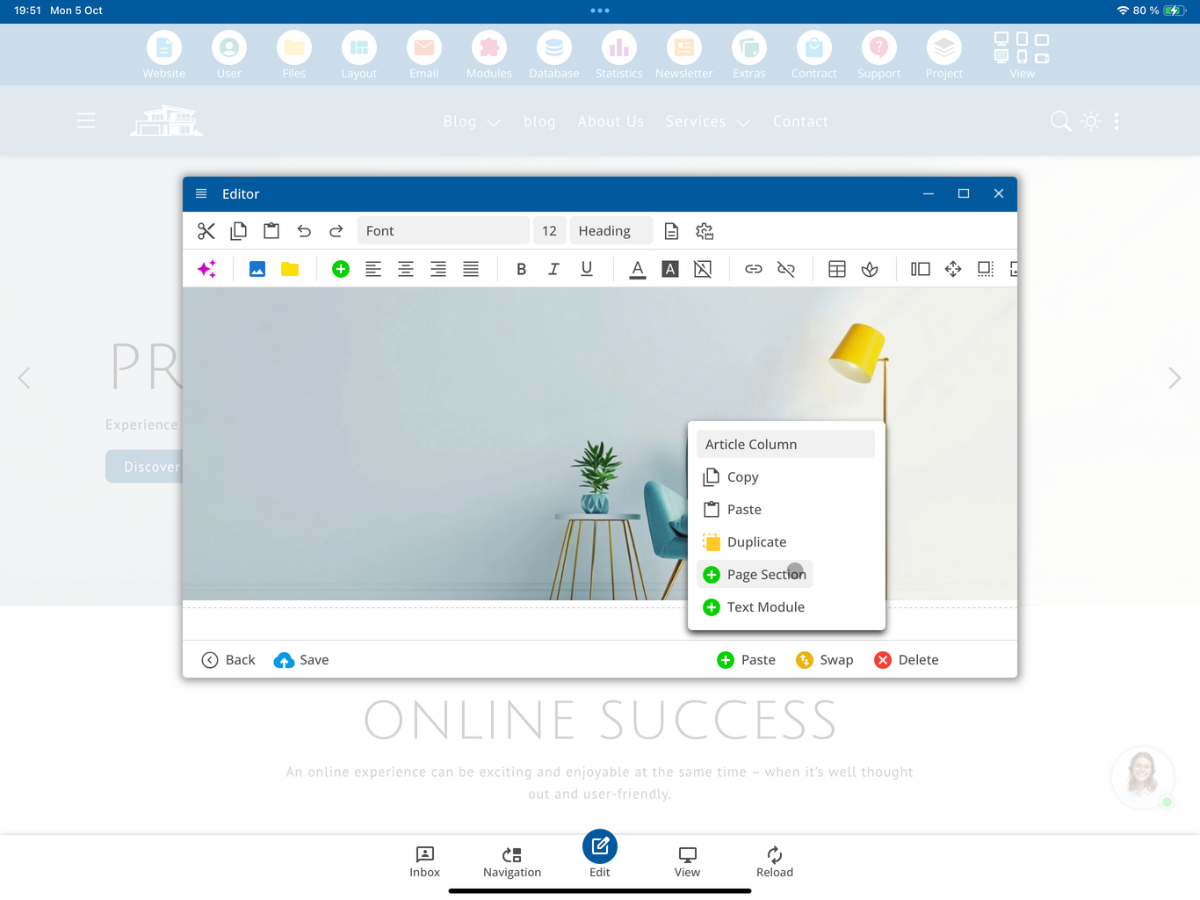
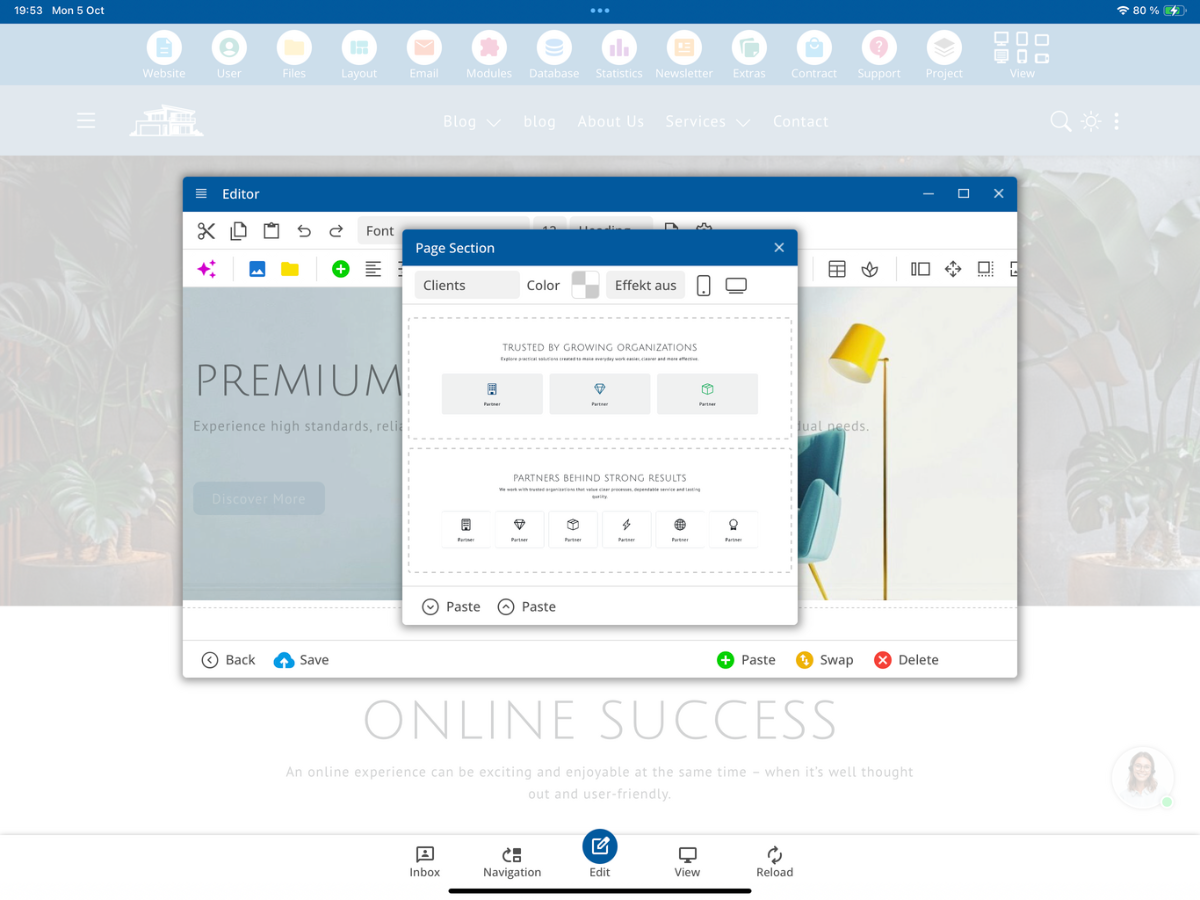
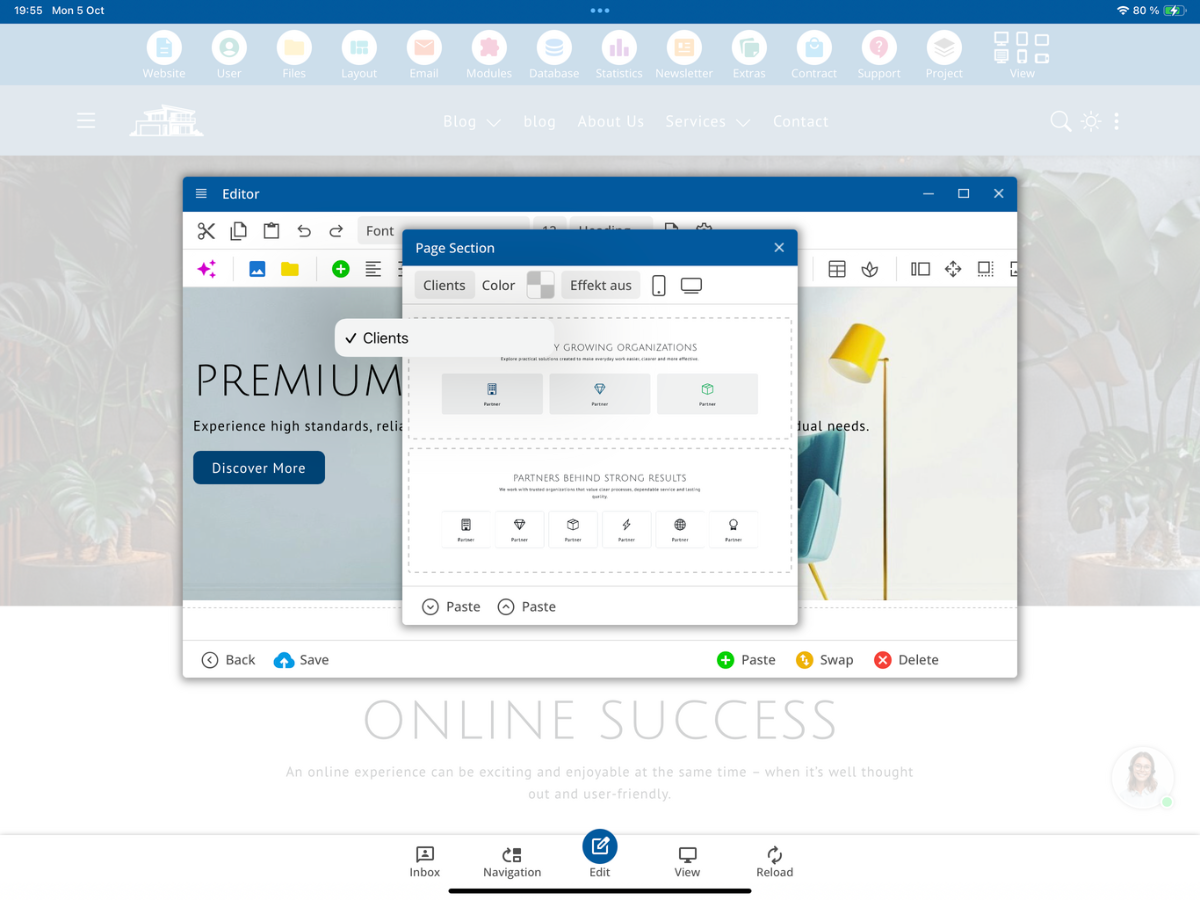
In the Section window, the available templates are displayed with a preview.
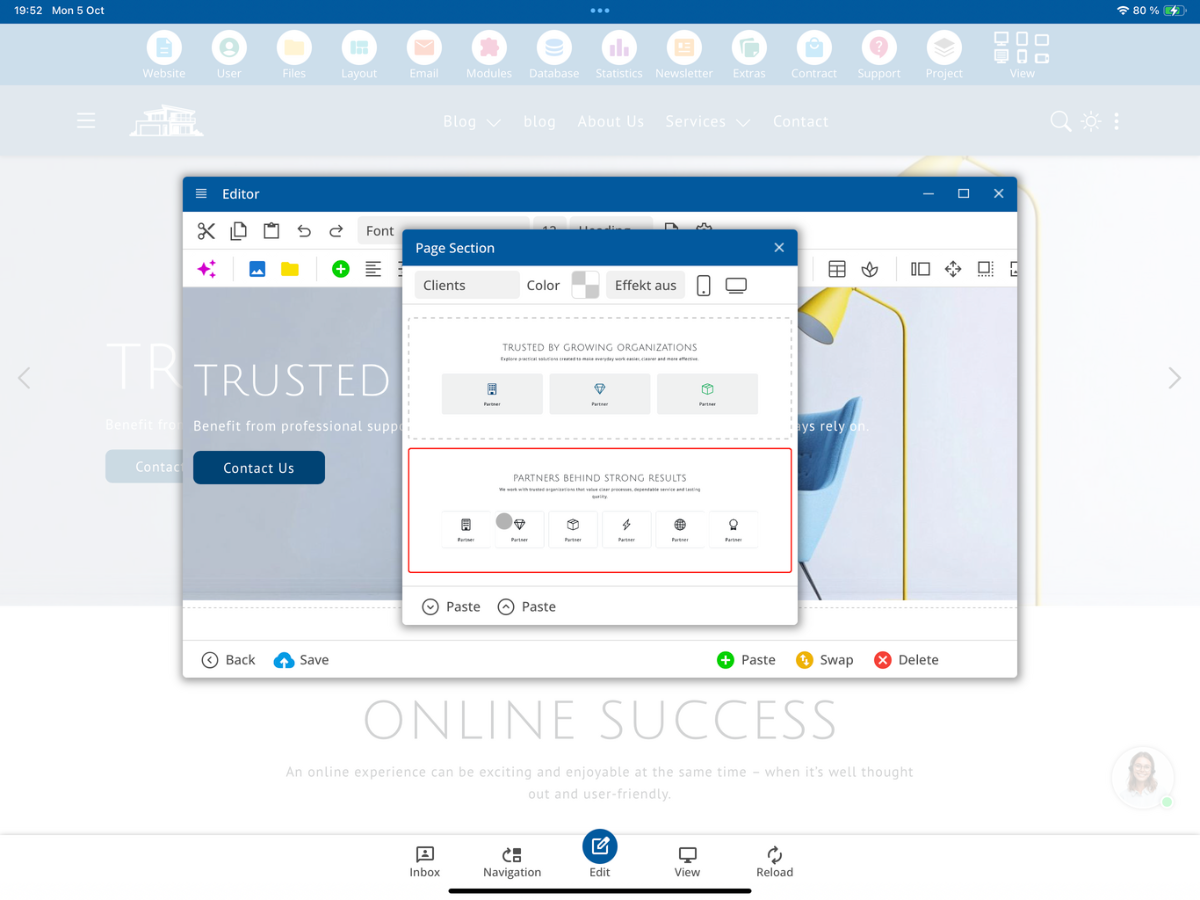
Select the category Clients as an example. Several layout variants are available there.
2. Where the templates are stored
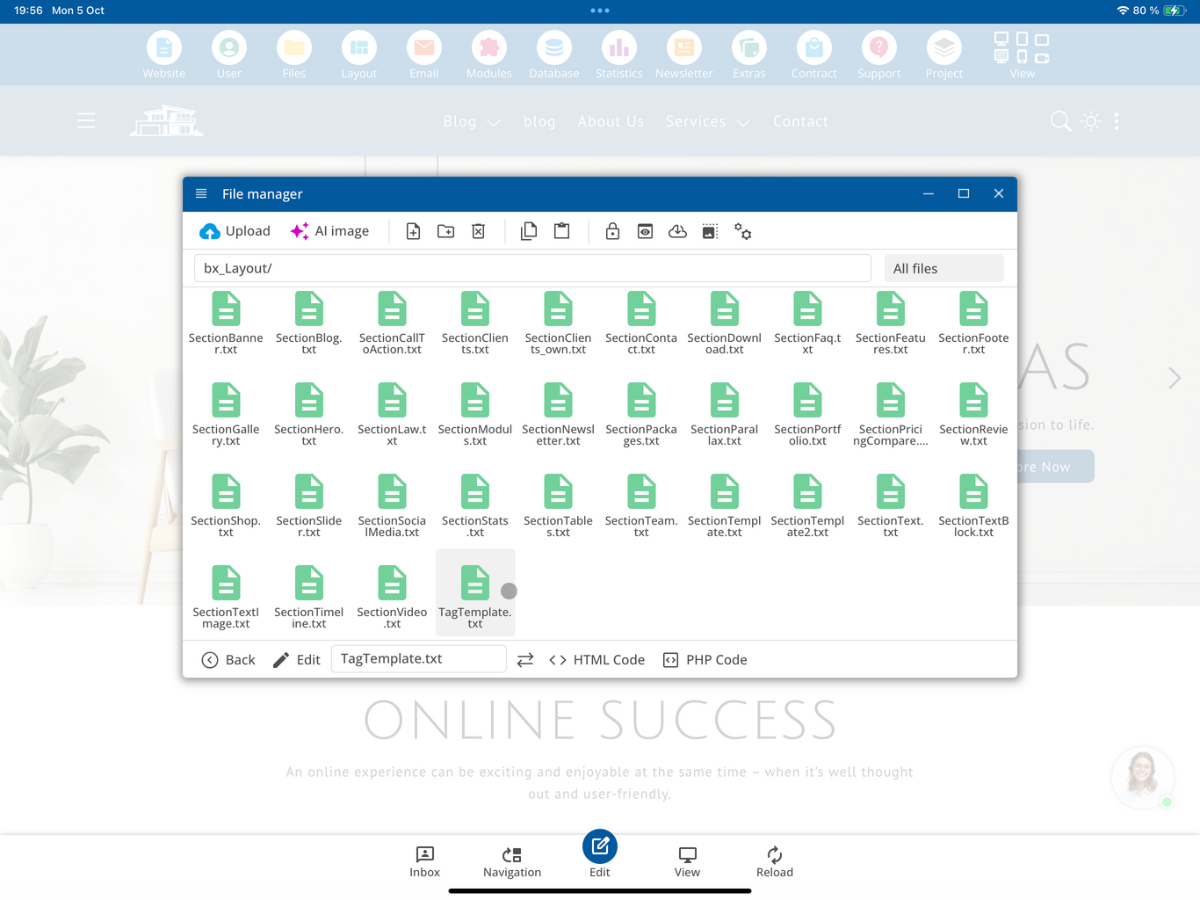
The template files are located in the developer folder /bx_Layout/. Open this folder in the File Manager. There you will find, among other things, files for sections (Section*.txt) and text modules (Tag*.txt).
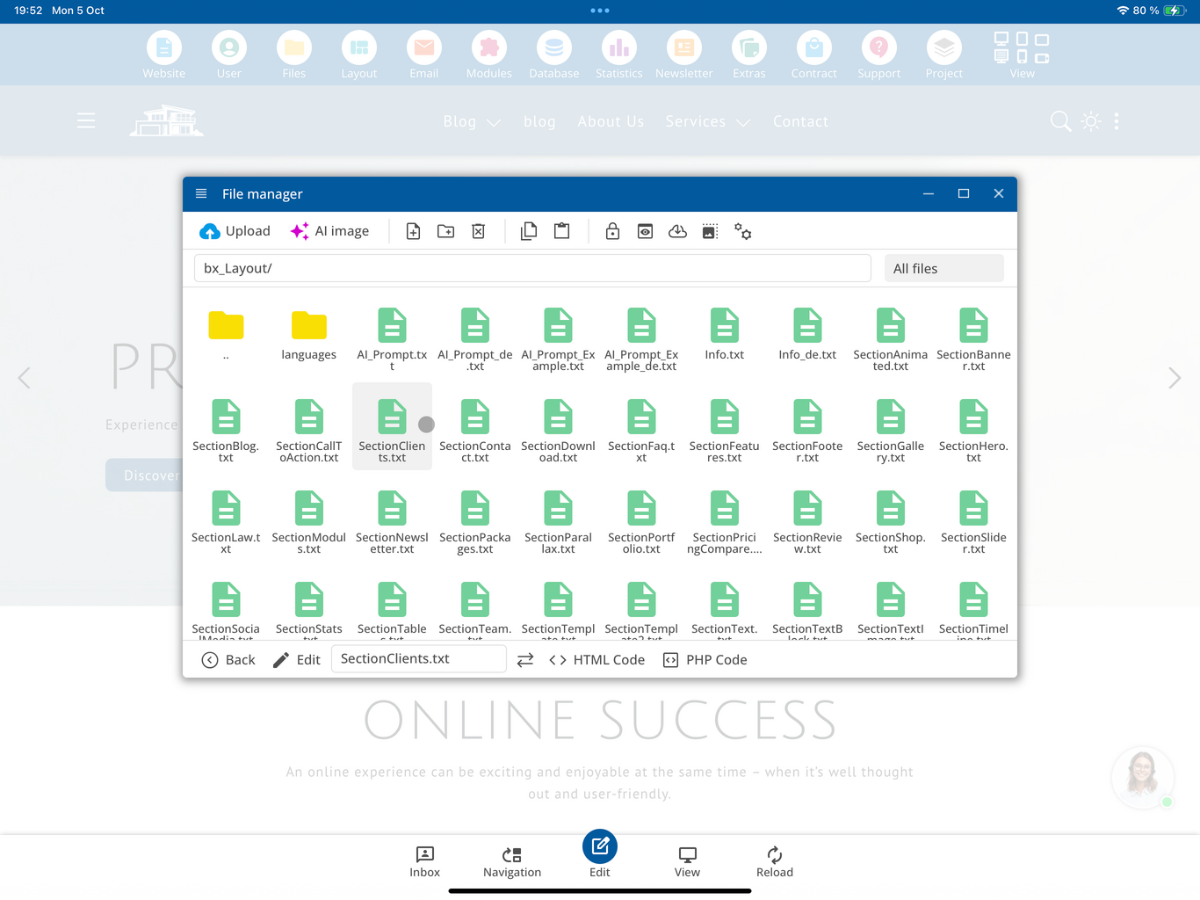
The filename determines the assignment to the template selection. A section template always begins with Section; followed by its individual name. For your own variants, the addition _own is used before the file extension.
| File name | Meaning in the editor |
|---|---|
SectionClients.txt | Standard template "Clients" |
SectionBanner.txt | Standard template "Banner" |
SectionClients_own.txt | Custom variant that replaces 'Clients' |
SectionMyTemplate_own.txt | Additional custom template named 'MyTemplate' |
You can also create an entirely new template. For this, choose your own name after Section. If no identically named standard file exists, the new template will appear in addition to replacing an existing template.
3. Why you should not edit standard files directly
The standard files provided with the CMS from /bx_Layout/ will be overwritten during system updates. Changes made directly to SectionClients.txt or SectionBanner.txt are therefore not permanent. Copy the desired standard file and mark your version with _own. The corresponding _own variants are meant for your individual, update-stable modifications.
SectionClients.txt
        ↓ kopieren
SectionClients_own.txt
If both files exist, the CMS will use the appropriate SectionClients_own.txt instead of the standard template SectionClients.txt. You do not need to rename the Clients category in the editor for this.
In contrast, if you create your own file under a new name, such as SectionMyTemplate_own.txt, the standard template Clients will still be available.
4. Structure of an HTML Section Template: the delimiter
A section file can contain multiple layout variants of the same category. To ensure the CMS editor recognizes the individual variants, they must be separated by the following delimiter:
<!--__SP_SectionTemplate__-->The marker is placed at the beginning, between the variants, and at the end of the example file. Follow the exact notation precisely. If the delimiter is missing, the editor may not reliably display multiple variants as separate selections.
The standard template SectionBanner.txt demonstrates this principle with several different banner layouts. You can use it as a basis for your own, simply structured section.
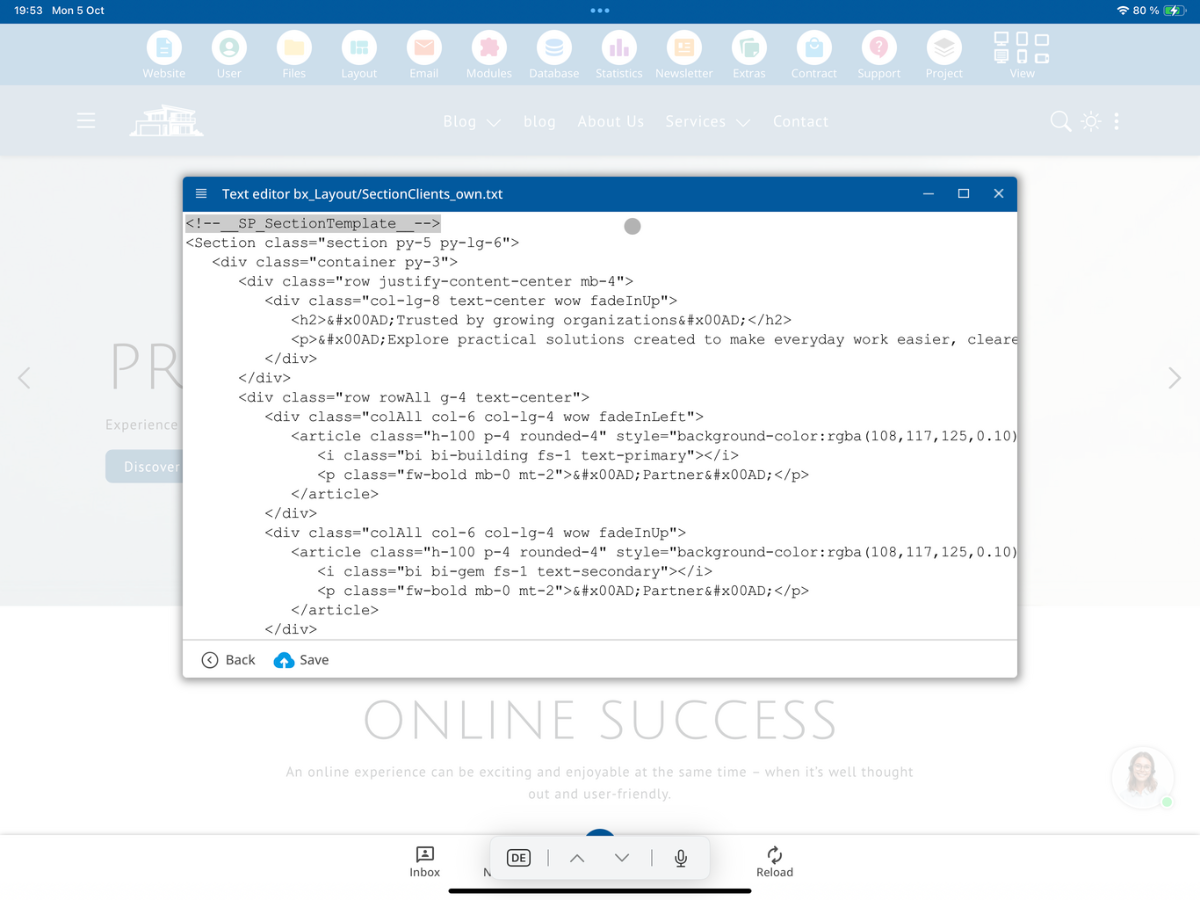
<!--__SP_SectionTemplate__-->
<Section class="section py-5 py-lg-6">
<div class="container py-3">
<div class="row align-items-center g-4">
<div class="col-lg-8 wow fadeInLeft">
<span class="badge text-bg-warning mb-3">­New­</span>
<h2 class="mb-2">­Designed for everyday success­</h2>
<p class="mb-0">­Explore practical solutions created to make everyday work easier, clearer and more effective.­</p>
</div>
<div class="col-lg-4 text-lg-end wow fadeInRight">
<a href="#"><button class="btn btn-light btn-lg">­Learn more­</button></a>
</div>
</div>
</div>
</Section>
<!--__SP_SectionTemplate__-->The example is a complete banner variant. For a second variant, place its HTML code after the last delimiter and also close this variant with the same marker. You can then design the actual section according to your requirements.
You do not need to add the class sectionAll yourself: The bluetronix editor automatically adds it when inserting a page section.
5. Copy the Clients template and change the heading
Open the existing SectionClients template in the file manager and view its HTML code. In our example, it contains a heading, a description, and several partner tiles.
Copy the corresponding template as SectionClients_own.txt and open the copy via Edit. For our test, add the string NEW!!!! to the heading. You can also individually change the text, the number of tiles, the icons, or the CSS.
<!-- Vorher -->
<h2>­Trusted by growing organizations­</h2>
<!-- Nachher in SectionClients_own.txt -->
<h2>­NEW!!!! Trusted by growing organizations­</h2>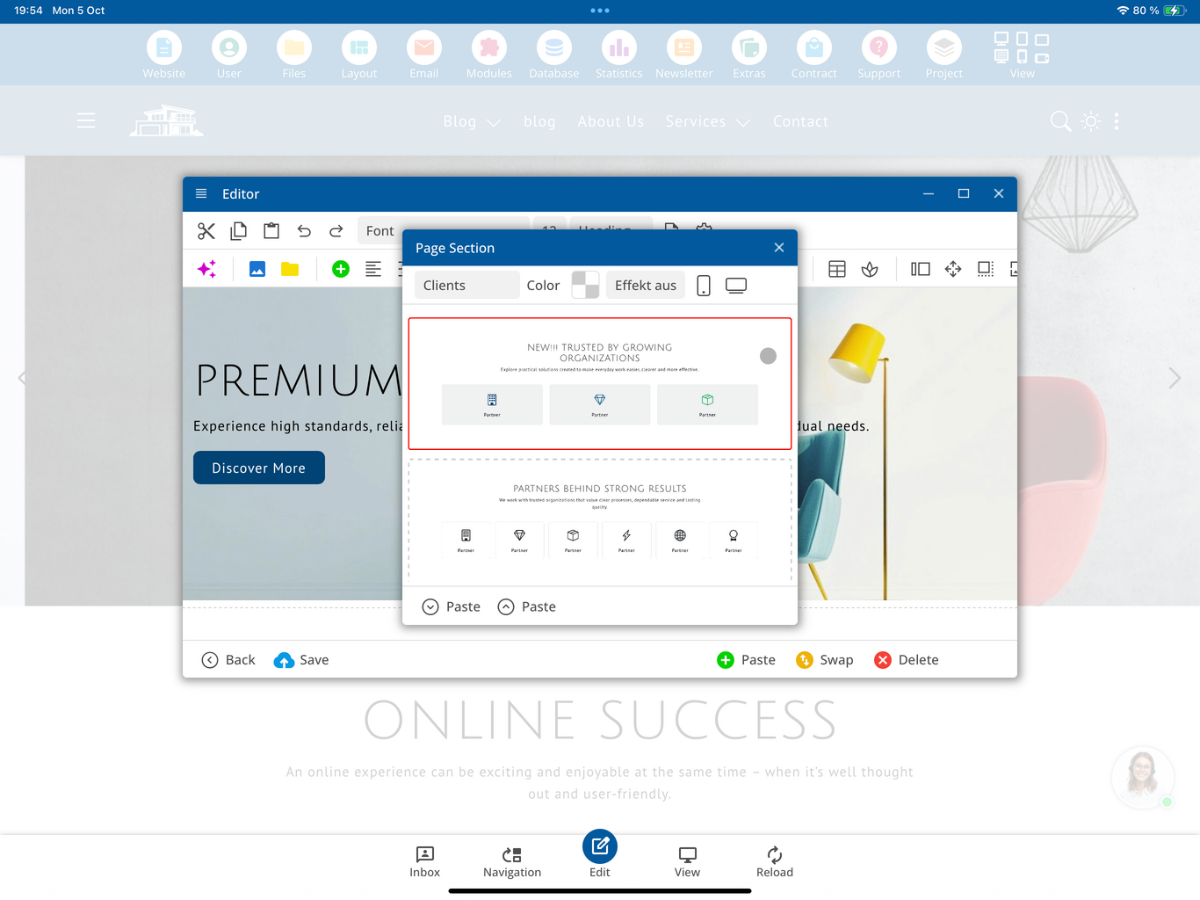
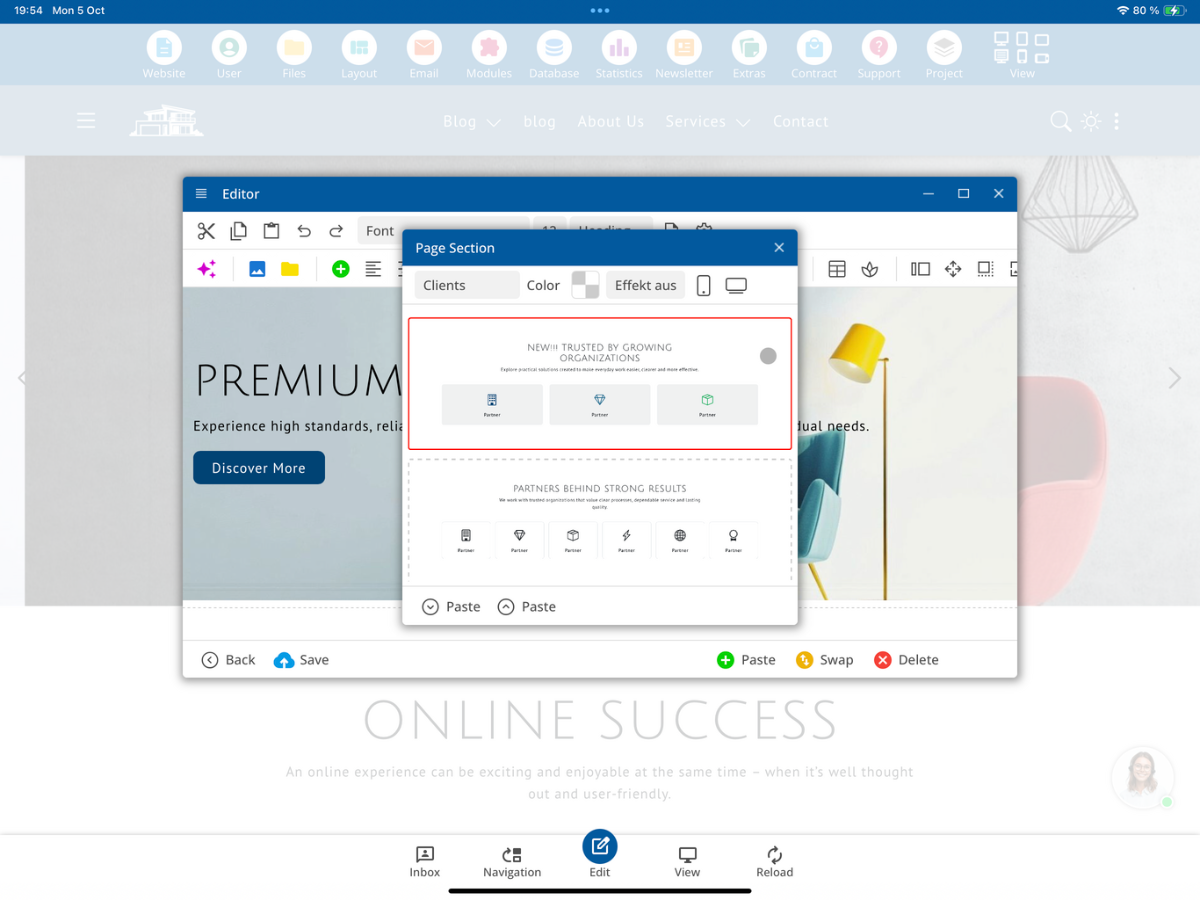
Click on Save and then reopen the selection Insert → Page Section → Clients. You will recognize your version by the changed heading. The second clients variant can be selected and edited independently.
6. Offer your own template under a new name
Instead of a similarly named replacement file, you can also create a separate template. For this, for example, copy a clients variant and save it as SectionMyTemplate_own.txt. The part after Section is the own template name; this determines the new selection in the editor. The original Clients template will not be replaced if given a different name.
SectionClients.txt          → Standard: Clients
SectionClients_own.txt      → eigene Version von Clients
SectionMyTemplate_own.txt   → zusätzliche eigene Vorlage MyTemplate
This allows you to develop fixed sections for specific page types for a client without needing to change the content of all the supplied templates.
7. Show only your own templates with Only_own.txt
If the end customer should only use your approved templates, create the flag file Only_own.txt in the folder /bx_Layout/. According to the shown template configuration, only suitable own files with the suffix _own will be offered in the template selection. This file does not require HTML code for this function.
/bx_Layout/Only_own.txt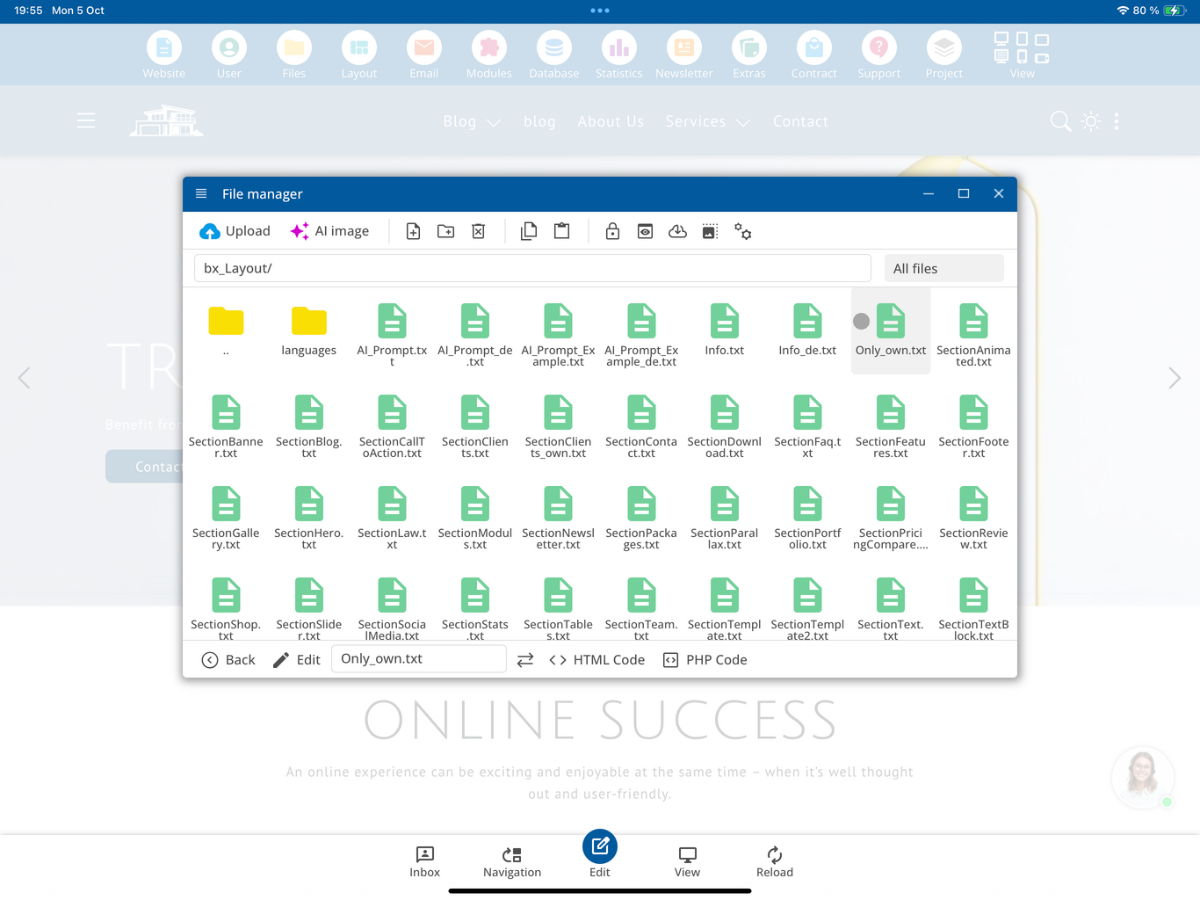
Example: If SectionClients.txt, SectionBanner.txt, and SectionMyTemplate_own.txt are located in the directory, activating this setting should limit the selection to only the appropriate own template. This allows you to provide a targeted, project-specific selection to a client.
8. Custom tag templates for text modules
The same _own principle applies to the smaller text blocks. Their files begin with Tag. For example, TagTemplate.txt becomes TagTemplate_own.txt. You can make this variant available via the Text Block entry in the editor.
TagTemplate.txt
        ↓ kopieren
TagTemplate_own.txt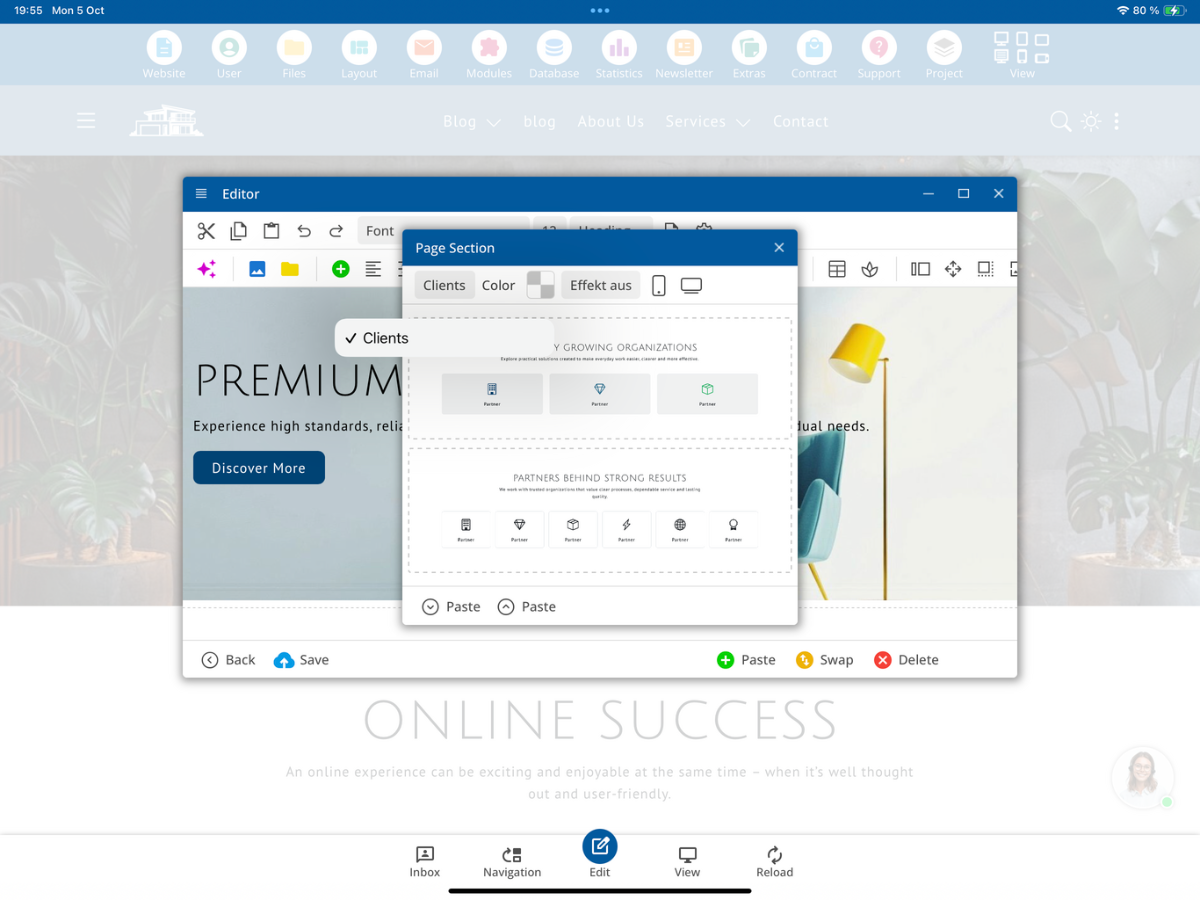
9. Duplicate editable columns with colAll
If a section contains multiple repeatable columns, a column with the class colAll can be recognized as a standalone block. This will make the function Article Column → Duplicate available in the context menu.
<div class="colAll col-md-6">
<h2>­Hello world­</h2>
<p>­Writing­</p>
</div>When duplicating, the relevant block is inserted as a second column. Therefore, for a repeatable card or article column, you must place colAll in the correct container. The parent sectionAll class is automatically handled by the editor.
10. Text markers and multilingual templates
The provided standard sections contain the string ­ within the example texts, for example before and after headings. These text markers should not be confused with the delimiter <!--__SP_SectionTemplate__-->. When copying existing templates, you should initially retain such CMS markers if you want to maintain the existing editor behavior.
<h2>­Designed for everyday success­</h2>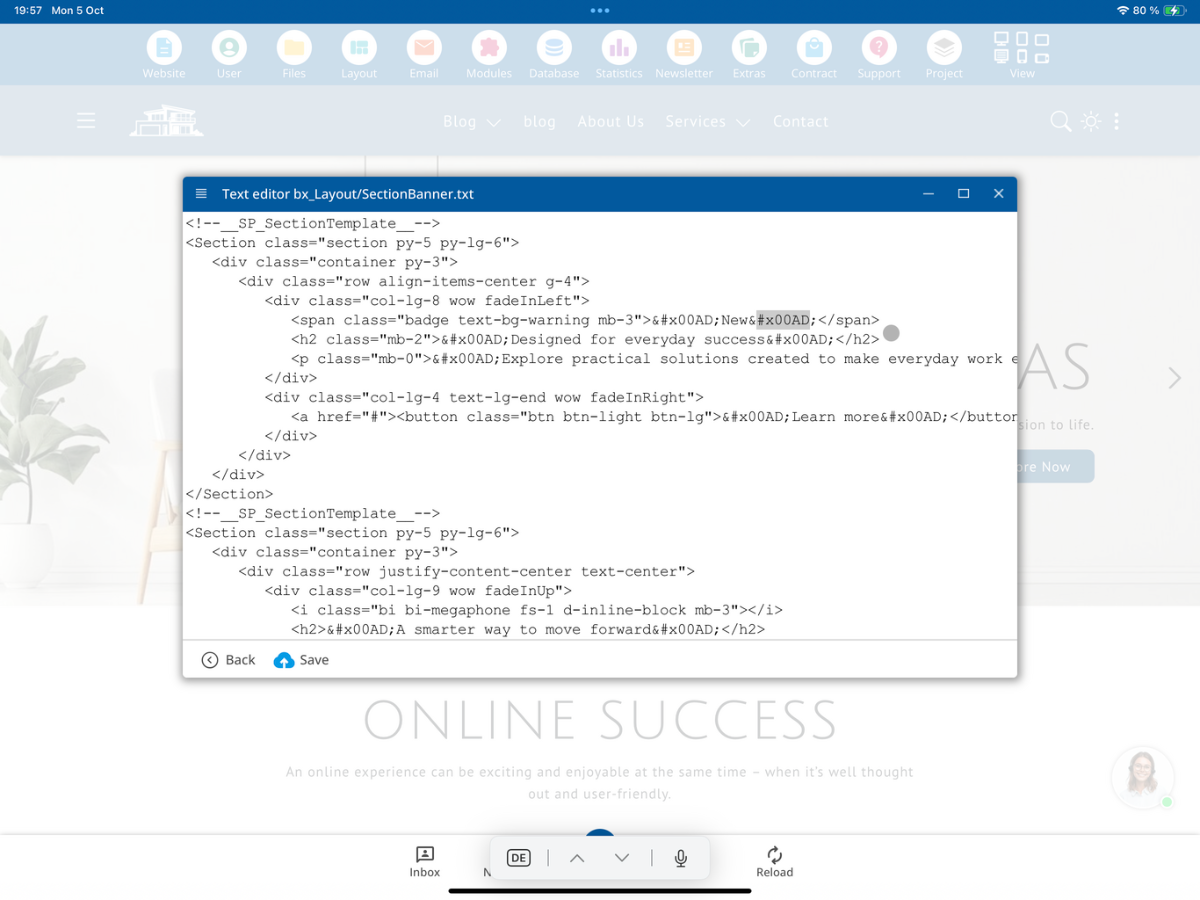
In multilingual projects, additional translation markers can be useful so that editors can maintain content in the required languages. The bluetronix CMS is designed for 24 languages. For a simple, exclusively monolingual project template, you can omit unnecessary additional translation markers; the section delimiters required for the editor must be retained.
11. Custom functions and required includes
When extending a template with PHP functions or module outputs, use unique names for your own functions. An existing function must not be declared again under the same name. You can safeguard the declaration, for example, with function_exists():
if(!function_exists("MyTestFunction")) {
   function MyTestFunction($Test) {
      return $Test;
   }
}
Required includes should be integrated at least once per section. A corresponding include marker can be copied from the editor:
<!--bxInclude--/bx_Mod/Blog_Detail-->The internal template files with the extensions .txt or .bx are not intended for direct access via public HTTP/HTTPS URLs in the described CMS server configuration. They are read and processed server-side.
12. Why restricted templates make sense for editorial teams
With your own sections and Only_own.txt, you determine which finished layout components the end user can select. Additionally, in the user settings, editor functions such as font or color changes can be restricted. The editors can then mainly insert predefined sections, edit texts, and exchange images without having to freely reconstruct the specified page design.
This method is particularly suitable for larger customer projects, corporate portals, and teams with multiple editors. The design remains consistent while the content can be flexibly maintained.
13. Results and summary
You open /bx_Layout/, copy an existing section file, add _own, adjust the HTML code and check the output under Insert → Page Section. For new selection categories, use a custom filename that starts with Section.
SectionClients.txt
       ↓ kopieren
SectionClients_own.txt
       ↓ HTML und Texte bearbeiten
<!--__SP_SectionTemplate__-->
       ↓ Varianten im Editor
Einfügen → Seiten-Abschnitt → Clients
If you additionally activate Only_own.txt and appropriately restrict the editor rights, your editors can specifically work with the provided custom HTML section templates.
FAQ
what customers often ask us
What are HTML section templates in the bluetronix CMS?
They are reusable HTML page sections that can be selected in the editor via Insert → Page Section and inserted into an existing CMS page.
Where can I find the HTML section templates?
The corresponding template files are located in the developer folder /bx_Layout/ of the file manager.
How should the name of a section file begin?
A section template must begin with Section. For example, the template SectionClients.txt belongs to the selection Clients.
Why shouldn't I modify the supplied section files?
The standard files will be overwritten during CMS updates. Copy the template and use your own _own file if you want to maintain the modification.
How do I replace the standard template Clients with my own version?
Copy SectionClients.txt to SectionClients_own.txt and edit the copy. The own variant with the same name will be used instead of the standard template.
How do I create an additional template with my own name?
For example, create SectionMyTemplate_own.txt. Since this name does not replace an existing standard template, it can be offered as an additional selection.
What is the purpose of the marker <!--__SP_SectionTemplate__-->?
With <!--__SP_SectionTemplate__-->, the CMS separates multiple layout variants within a section file. Follow the notation exactly.
Do I need to write the class sectionAll in a custom template?
No. The editor automatically adds sectionAll.
What does the file Only_own.txt do?
It is created under /bx_Layout/ and restricts the template selection according to the shown configuration to custom files with the suffix _own.
What is the difference between Section files and Tag files?
Section files describe complete page sections. Tag files are the templates for smaller text blocks; both support the _own principle.
How can I duplicate columns in the editor?
Mark the repeatable column container with colAll. Using the Article Column → Duplicate function, this block can be replicated.
Am I allowed to add PHP functions in my own Sections?
Yes, as long as your development environment allows it. Avoid duplicate function names or ensure function declarations with function_exists(). Required includes should be present at least once per Section.
How do I prevent editors from deviating from the specified design?
Offer only approved custom templates through Only_own.txt and restrict functions like font and color changes in user settings if necessary.
Can my own templates be multilingual?
Yes. For relevant projects, you can use the designated translation and text markers. The term for the English documentation is HTML Section Templates.